UniTalk cloud phone system
The Cliniccards integration with the UniTalk cloud phone system lets you:
- Call patients by clicking their phone number in Cliniccards.
- View patient information after answering an incoming call.
- Open the patient record, visits, or treatment plan from the call window.
- Create a patient record with the caller’s phone number already filled in.
- Review call history and listen to call recordings.
- Read call transcripts when UniTalk AI Analytics is enabled.
What you need to get started
A UniTalk representative will contact you to help connect your practice phone number, set up staff lines, and configure call routing. You can then follow the instructions below to set up the integration in Cliniccards.
Before you begin, make sure you have:
- A Cliniccards practice account with access to settings.
- A UniTalk account with your practice phone number connected.
- A separate internal SIP line for each staff member who will handle calls. Assign each line to the corresponding UniTalk user.
- A staff profile in Cliniccards for each person who will handle calls.
- Google Chrome on the computers staff will use for calls.
- A UniTalk AI Analytics profile if you need call transcripts.
Before proceeding, contact UniTalk Support for help creating lines, connecting phone numbers, and setting up call routing and the automated attendant.
During setup, it helps to keep Cliniccards and UniTalk open in adjacent browser tabs.
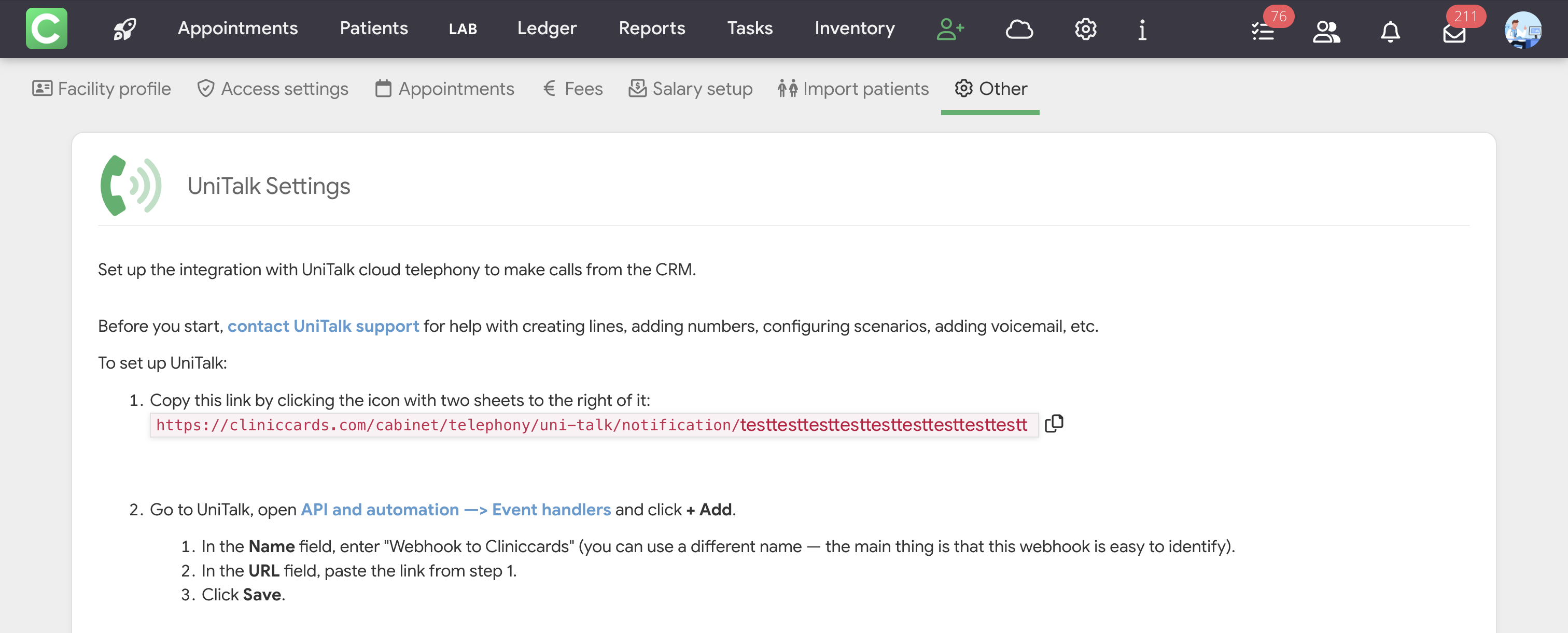
1. Copy your practice link from Cliniccards
- Go to Settings → Other → IP Telephony Settings.
- Select UniTalk.
- Click Show additional settings.
- In the first step of the on-screen instructions, use the button to the right of your practice link to copy it.
You’ll use this link twice in UniTalk: once to create an event handler and again to set up inbound call routing.
2. Create an event handler in UniTalk
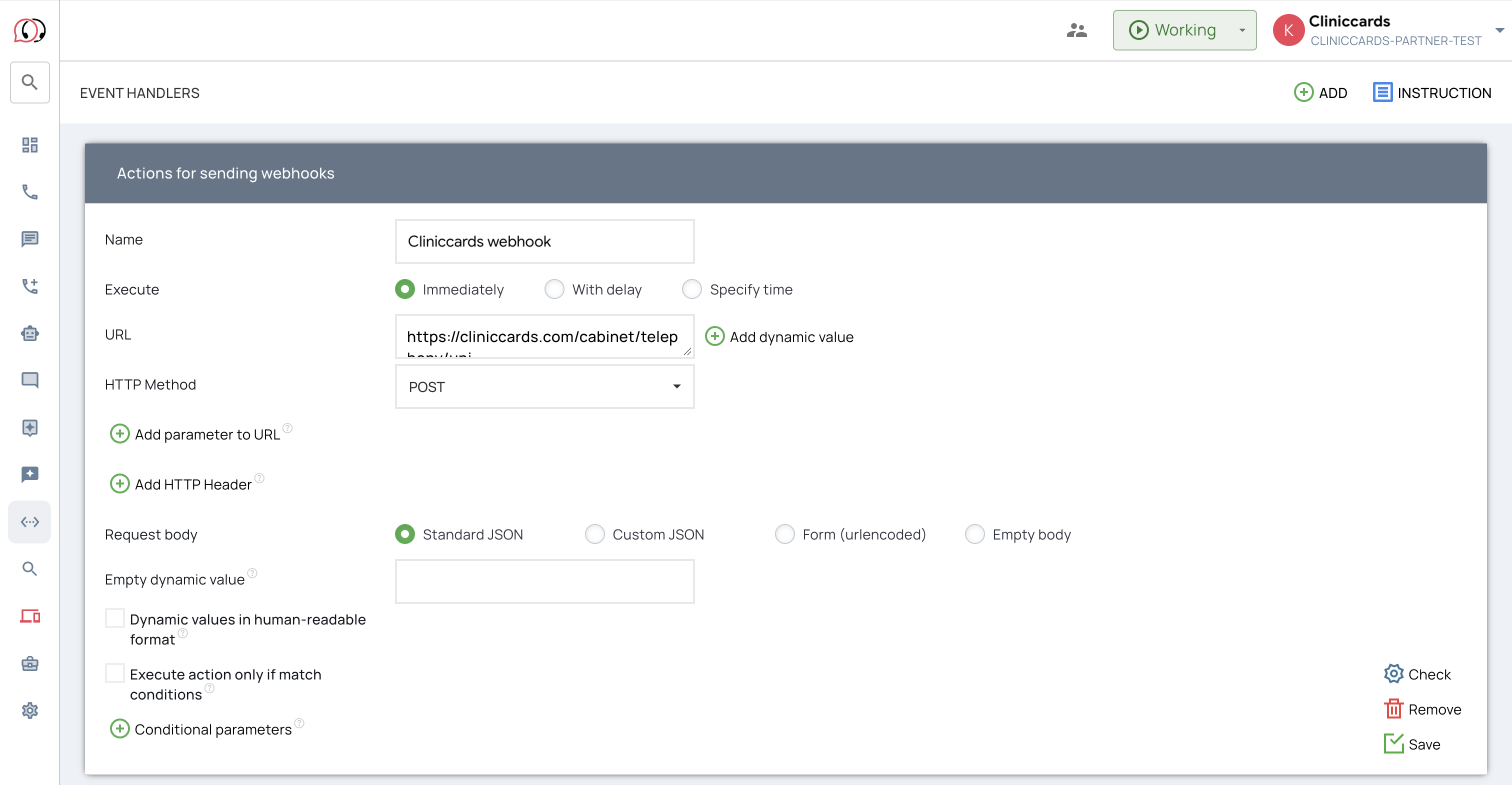
The event handler sends call information to Cliniccards.
- In your UniTalk account, go to API and Automation → Event Handlers.
- Click Add.
- Complete the Webhook Actions form.
- Name: For example, “Cliniccards webhook”
- Run: Immediately
- URL: The practice link you copied from Cliniccards
- HTTP method: POST
- Request body: Standard JSON
- Click Save.
3. Assign the handler to events
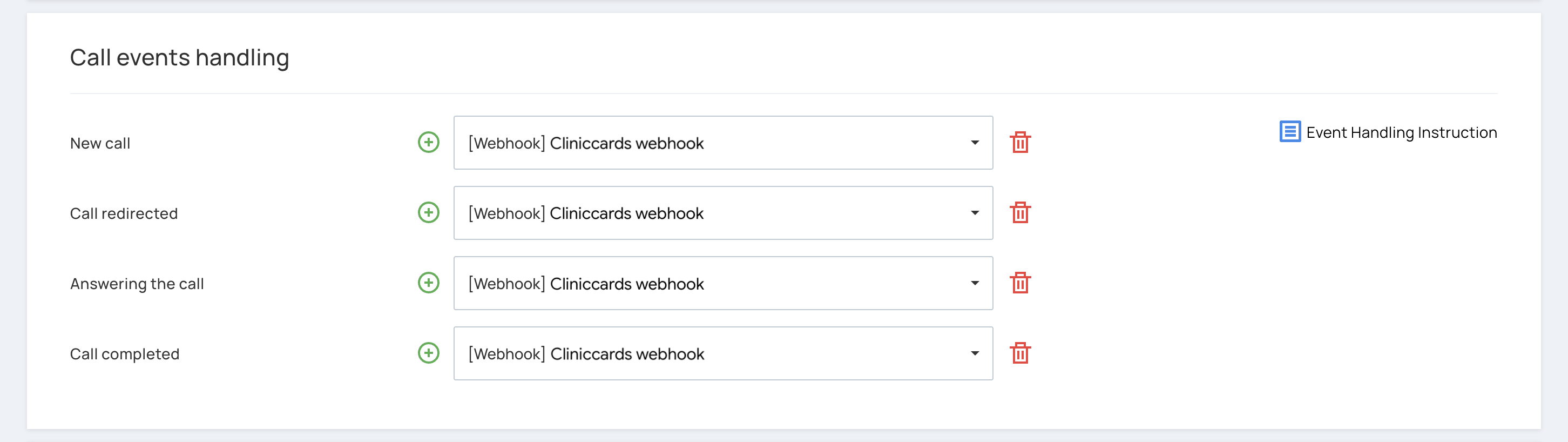
- In UniTalk, go to API and Automation → API.
- Find the Call Event Handling section.
- Click the plus sign next to each of the following events and select the handler you created:
- New Call
- Call Forwarded
- Call Answered
- Call Ended
- In the User Status Change Event Handling section below, add the same handler.
- Click Save at the bottom of the page.
Important: Add every event listed above. The Call Answered event lets Cliniccards identify the staff member who answered and display the call window for that person. The Call Ended event closes the window automatically when the call ends.
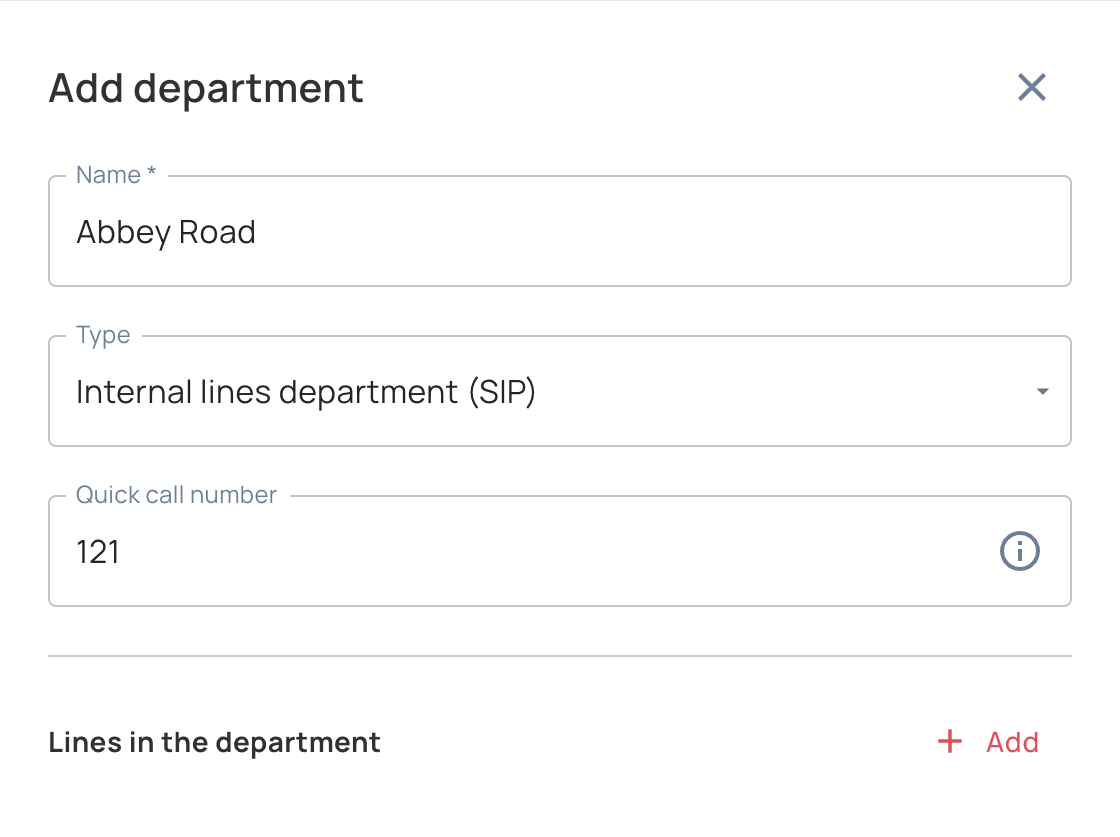
4. Create a telephony department and add staff lines
- In UniTalk, go to Settings → Departments → Telephony Departments.
- Click Add Telephony Department or open an existing department to edit it.
- Enter a department name, such as the name of your practice location.
- In the Type field, select Internal Lines Department (SIP).
- Under Lines in Department, click + Add and add the lines of all staff members who will answer incoming calls.
- Click Save.
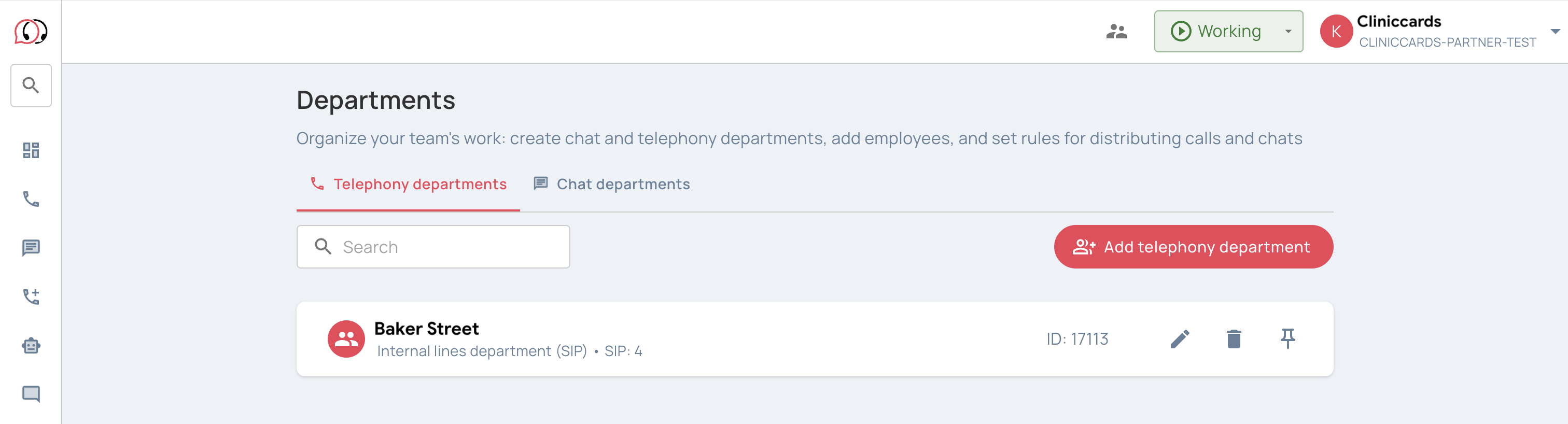
Please note: If the lines you need aren’t available, contact UniTalk Support to have them created. The inbound call routing scenario uses this department to direct calls to staff.
5. Set up the inbound call routing scenario
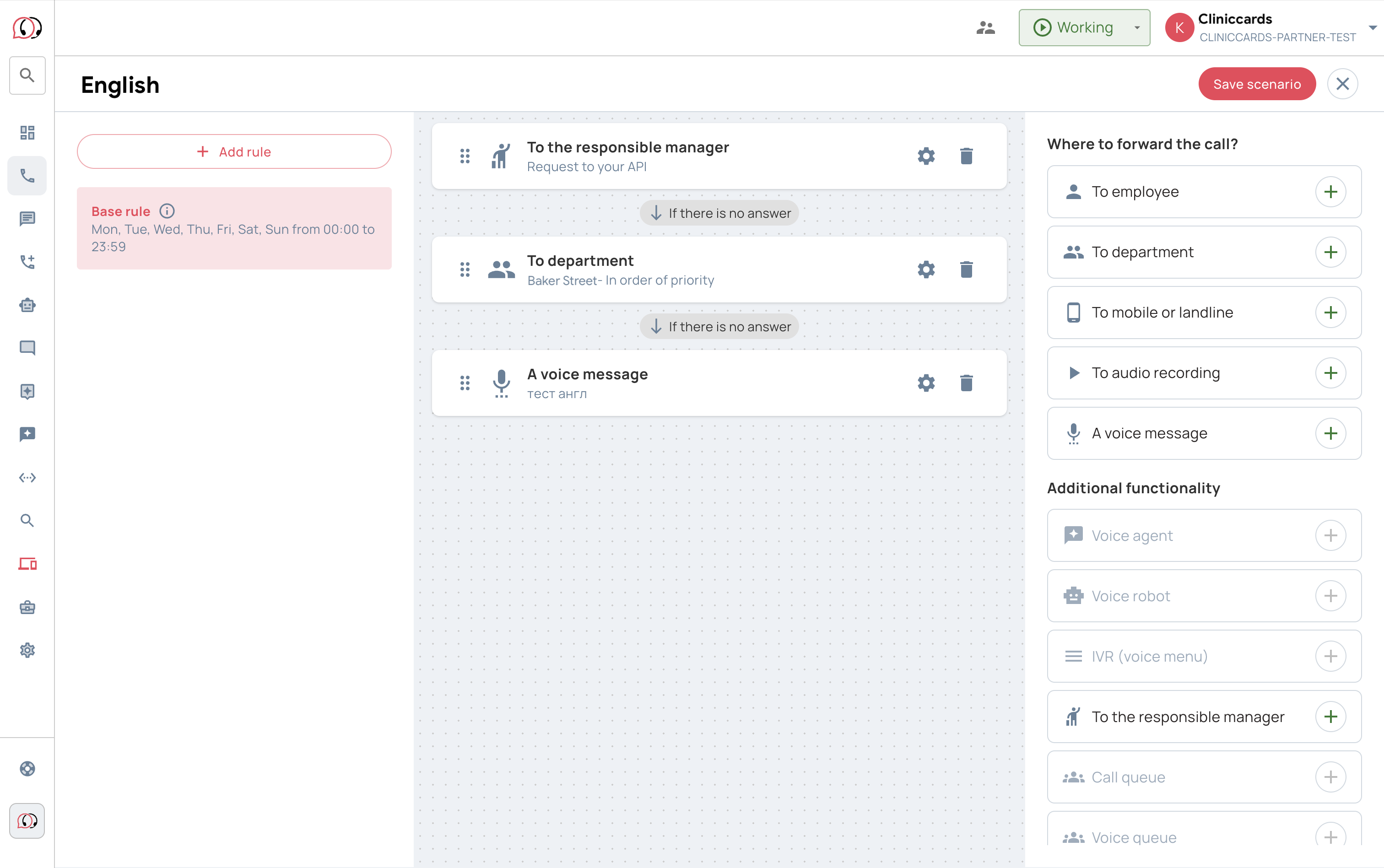
In UniTalk, go to Calls → Settings → Incoming Scenarios. Click the gear icon next to the active scenario for your practice phone number.
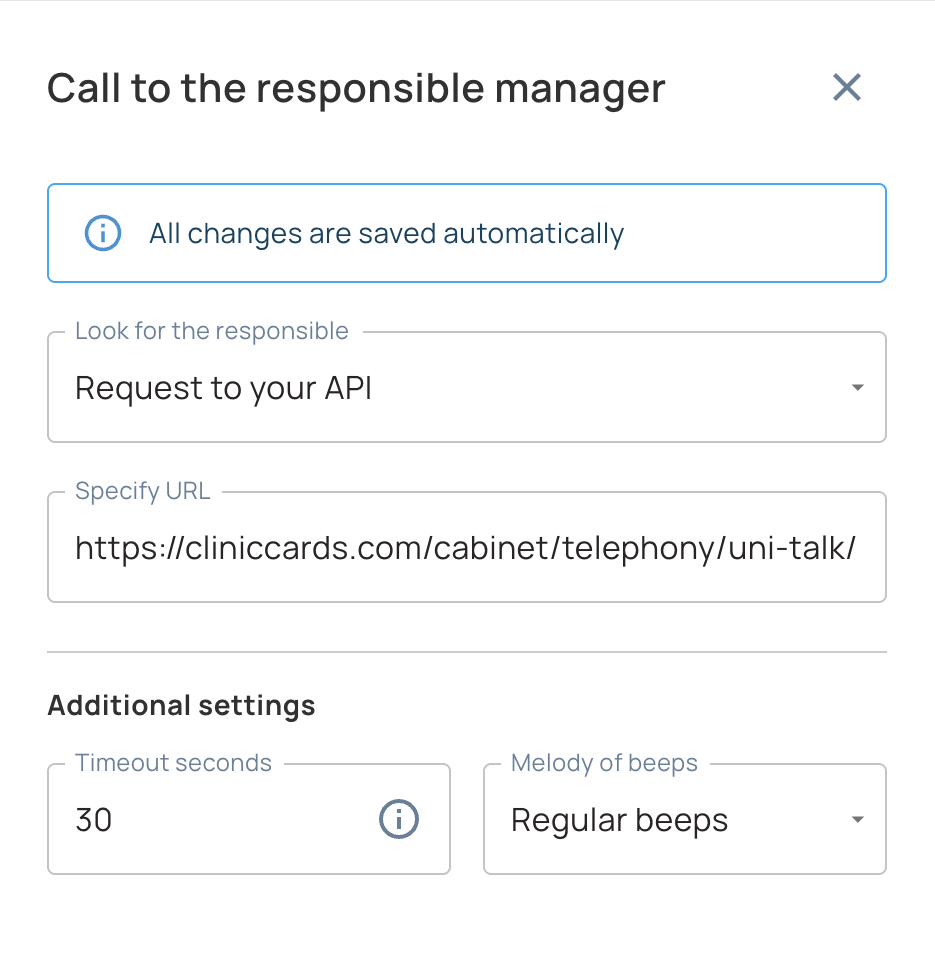
First block: Route to responsible Manager
- Add the Route to responsible Manager block from the Additional Features section.
- Place it first in the scenario.
- Open the block settings.
- In the Find responsible Manager field, select Query Your API.
- In the Enter URL field, paste the practice link you copied from Cliniccards in step 1.
This block sends the caller’s phone number to Cliniccards to look up the patient and display their name in the phone app.
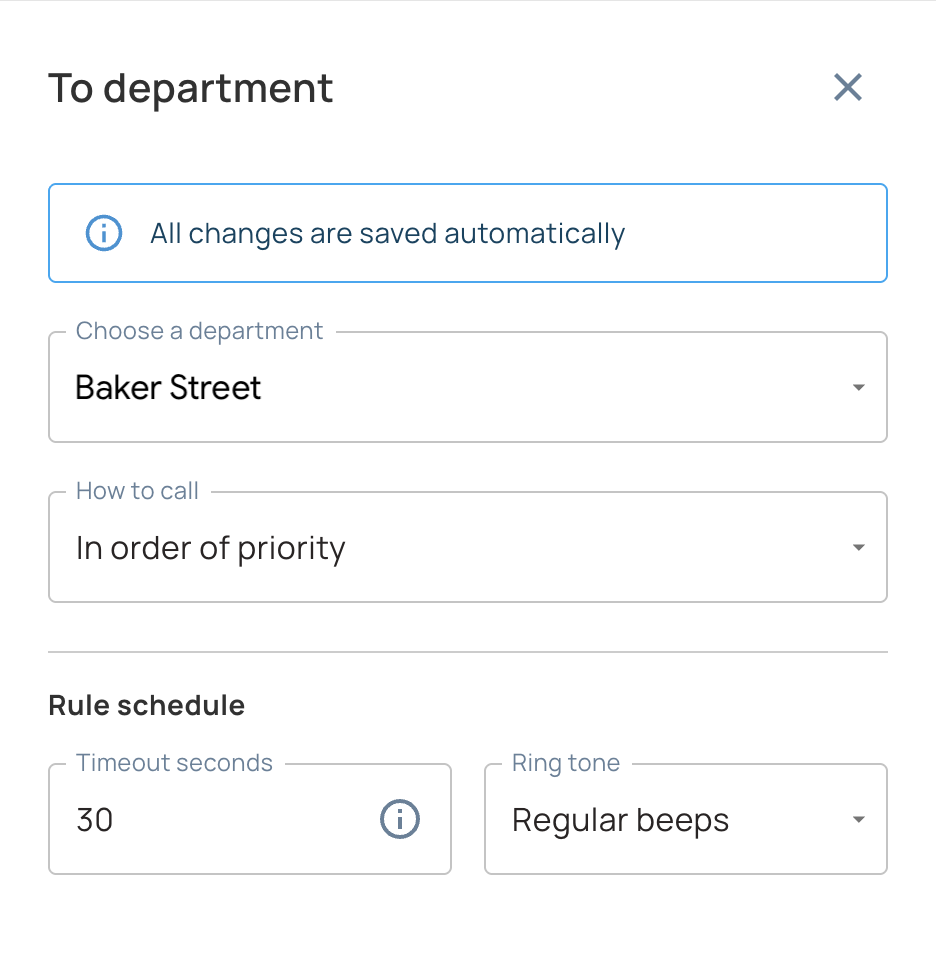
Second block: Route to Department
- Add the Route to Department block.
- Place it immediately after Route to responsible Manager.
- In the block settings, select the department where you added the staff lines.
- Choose how to distribute calls, for example By Priority.
- Click Save Scenario.
Important: Keep the blocks in this order: Route to Assigned Manager first, then Route to Department. Add voice messages and any other steps after these two blocks.
If no patient matches the phone number, the call continues to the next step in the scenario.
6. Add the API keys to Cliniccards
- In UniTalk, go to API and Automation → API.
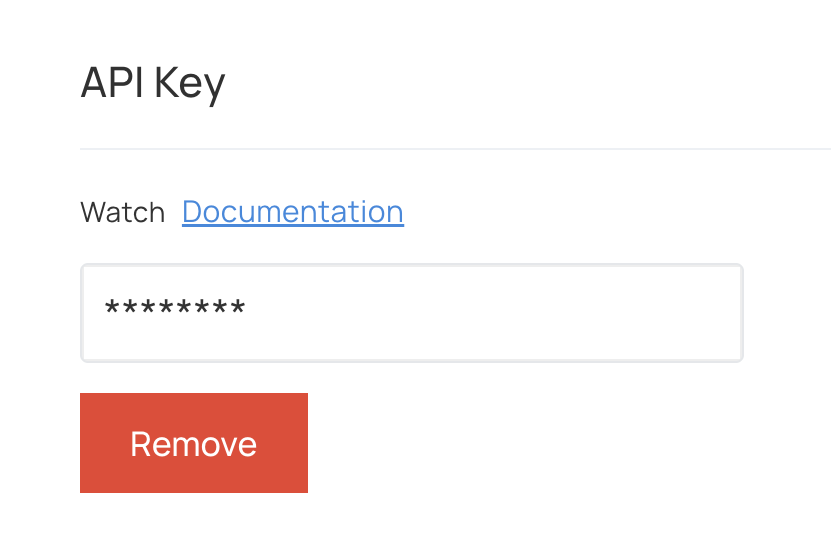
- In the API Key section, click the masked field to reveal the key, then copy it. Use the project key, not a manager’s personal key.
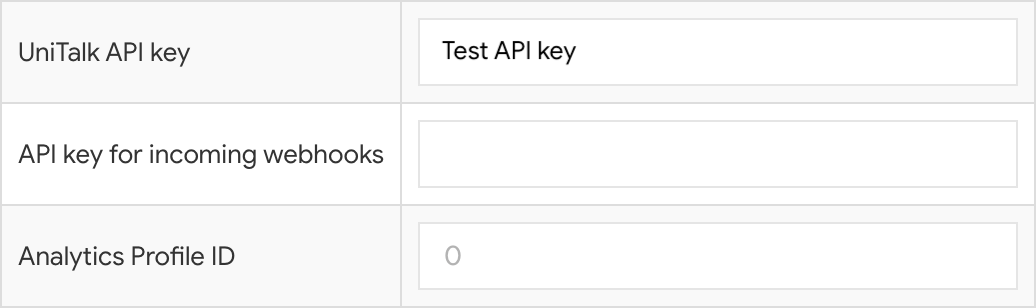
- Return to the UniTalk settings in Cliniccards.
- Paste the key into the UniTalk API Key field.
- In UniTalk, return to the same API and Automation → API page.
- Copy the key from the Incoming Webhooks section.
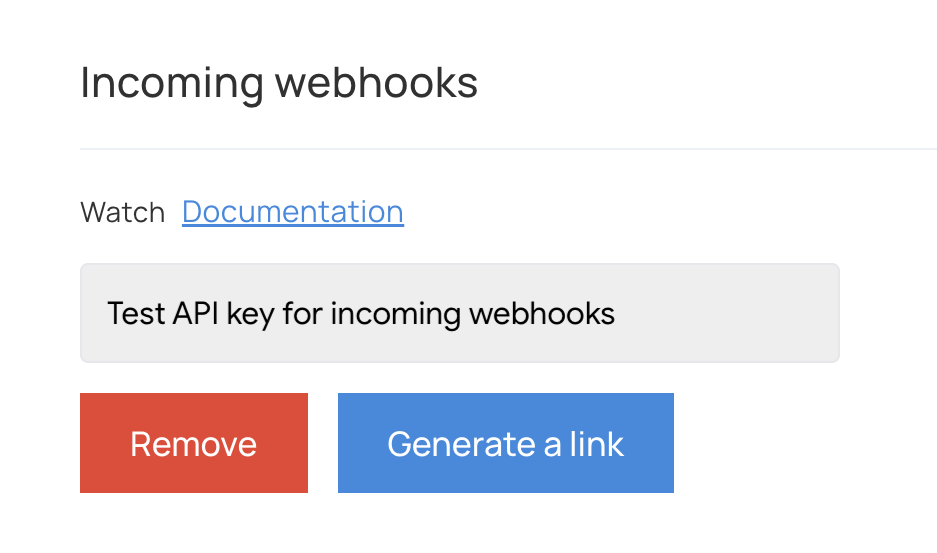
- In Cliniccards, paste it into the API Key for Incoming Webhooks field.
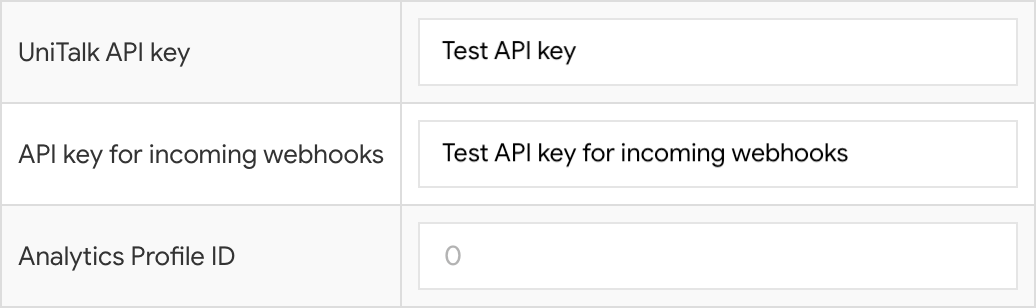
- Turn on Enable UniTalk.
- Click Save.
Set up call transcription
If you need call transcripts:
- In UniTalk, go to AI Analytics → Profiles.
- Copy the ID of the profile you want to use. It appears below the profile name.
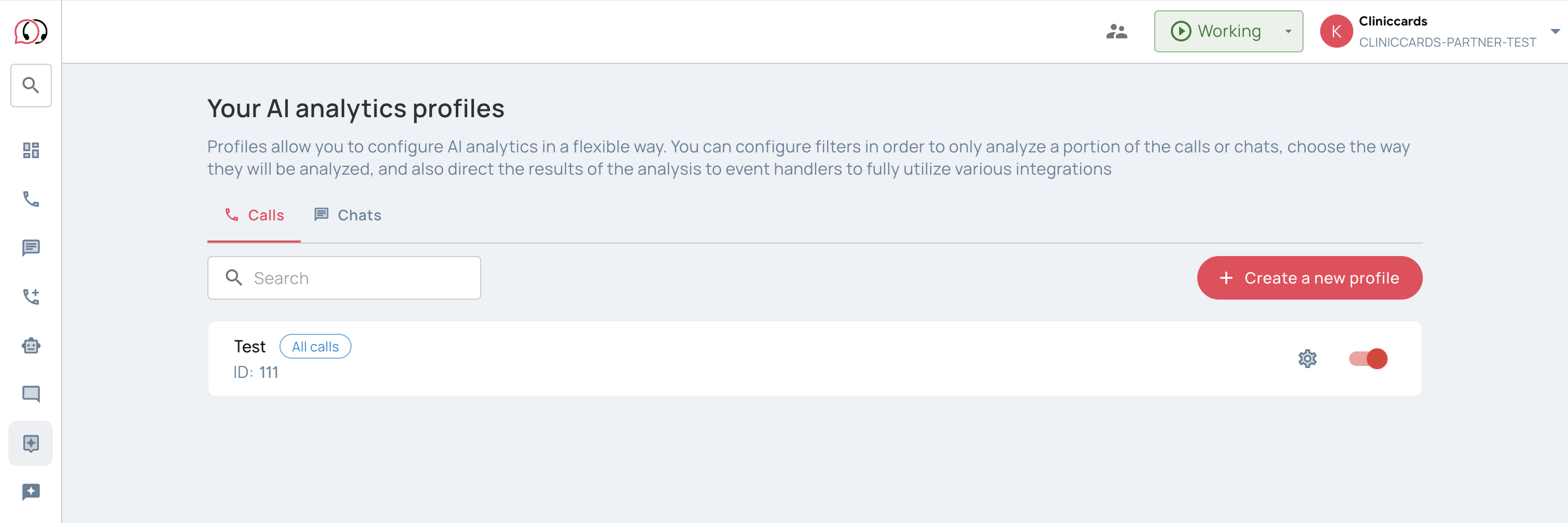
- In Cliniccards, paste the ID into the Analytics Profile ID field.
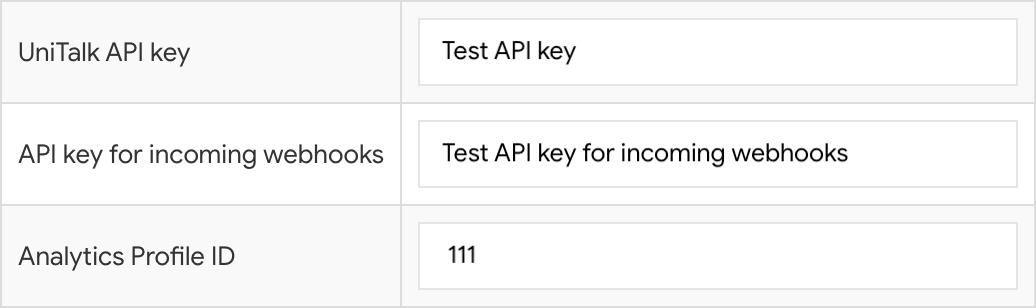
- Save your settings.
If you don’t need transcripts, leave the field blank.
7. Assign lines to staff
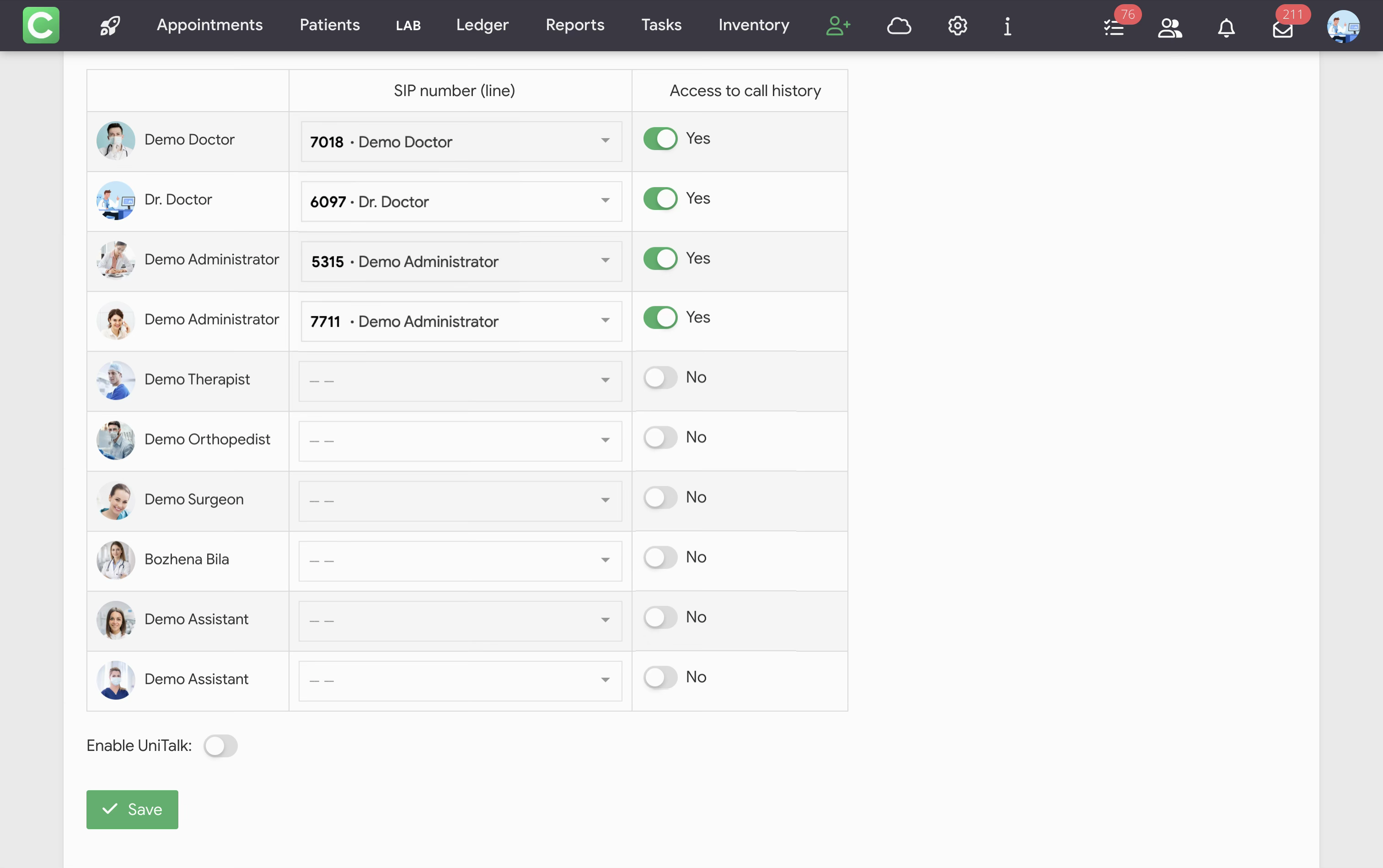
Once you save the API key and enable the integration, the list of UniTalk lines becomes available in the staff table.
For each staff member who will handle calls:
- Select their line in the SIP Number (Line) column.
- If they need to view calls in the patient record, enable Access to Call History.
- Click Save.
Please note: Assign each line to one staff member only. The line number must match in Cliniccards, in the staff member’s UniTalk account, and in the telephony department. Do not assign the same line to multiple people.
8. Install UniTalk Web Dialer
Set up the extension on the computer of each staff member who will handle calls.
- In your UniTalk account, open UniTalk Apps.
- Find the Google Chrome Extension card and click Chrome Extension.
- In the Chrome Web Store, click Add to Chrome, then Add extension.
- Allow microphone access.
- Open UniTalk from the Chrome toolbar and sign in with your UniTalk username and password.
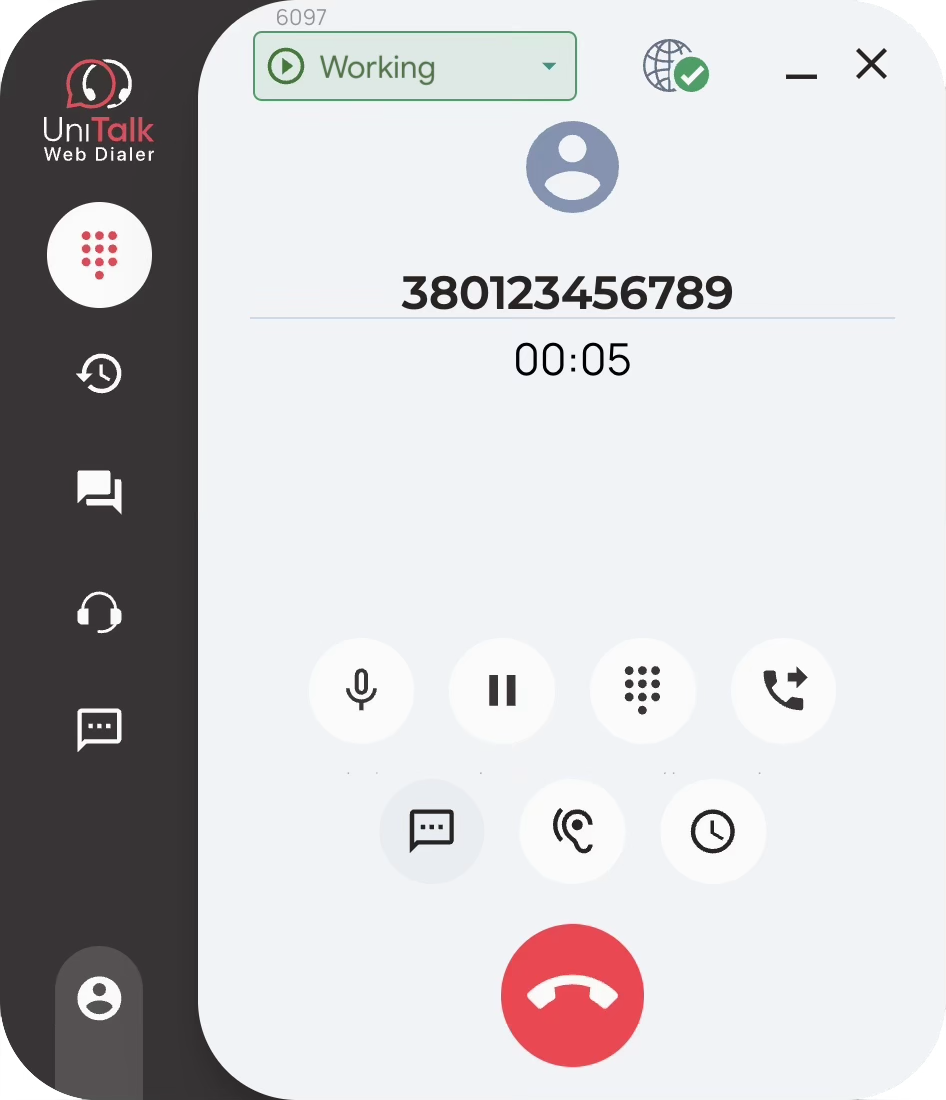
- Set your status to Working.
- Check the line number above your status. It must match the line assigned to you in Cliniccards.
The line must have Working status to receive incoming calls. Calls are not routed to the line while you’re on a break or after you finish work.
9. Enable UniTalk on the device
Each staff member must complete this step in their own Cliniccards account:
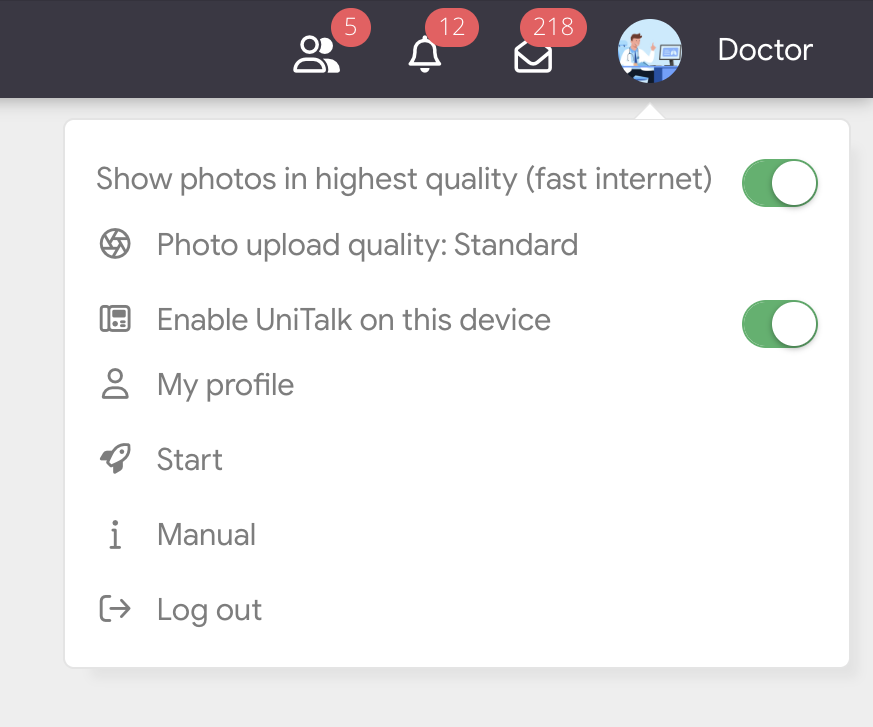
- Click your profile photo in the upper-right corner.
- Turn on Enable UniTalk on this device.
The switch appears only after a line has been assigned to you. This setting applies only to the current browser on this computer. It must be enabled for click-to-call, test calls, and the incoming call window to work.
10. Test call
- Check the phone number in your Cliniccards profile. This is the number used for the test call.
- On the UniTalk settings page in Cliniccards, click Test Call.
- Answer the call in the UniTalk extension. UniTalk will then call the number in your profile.
Using the integration
Outgoing calls
Click the patient’s phone number in Cliniccards. For example, open their appointment in the schedule and click the phone number in the appointment window. You can make calls from any Cliniccards screen where the patient’s phone number is available.
Incoming calls
When a staff member answers a call, the Incoming Call window appears on their screen.
The window shows:
- The caller’s phone number
- Up to 10 patients whose records match that number
- Dates of birth
- Upcoming and most recent visits
- Links to the patient record, visits, and treatment plan
If several patients share the number, ask who’s calling and select the correct patient record.
Only the staff member who answered sees the window. It closes automatically when the call ends.
New patient
If the phone number doesn’t match a patient record, click New Patient in the call window. The phone number will already be filled in on the new patient form.
Call history, recordings, and transcripts
In the calls section of the patient record, you can review answered and missed calls and listen to recordings. If you’ve set up a UniTalk AI Analytics profile and entered its ID in Cliniccards, you can also read the call transcript.
To view this information, a staff member needs Access to Call History enabled in the integration settings.