Tasks in Cliniccards is a task management system that works on the principle of Kanban boards.
A Kanban board is a visual way to organize work: all tasks are displayed as cards that move between status columns (e.g., “New,” “In Progress,” “Done”). This approach allows you to see at a glance what is currently being done, what has already been completed, and what needs attention.
The Tasks module allows you to plan, distribute, and control all work processes in a clinic or laboratory.
Key benefits:
Main elements of the module:
How to activate Tasks
To start working with Tasks, you need to activate the module in the clinic settings.
Only the clinic owner or super administrator can activate Tasks.
After activation, the module becomes available for configuring teams, boards, and access rights.
How to create a board
Editing a board
After creating a board, you can:
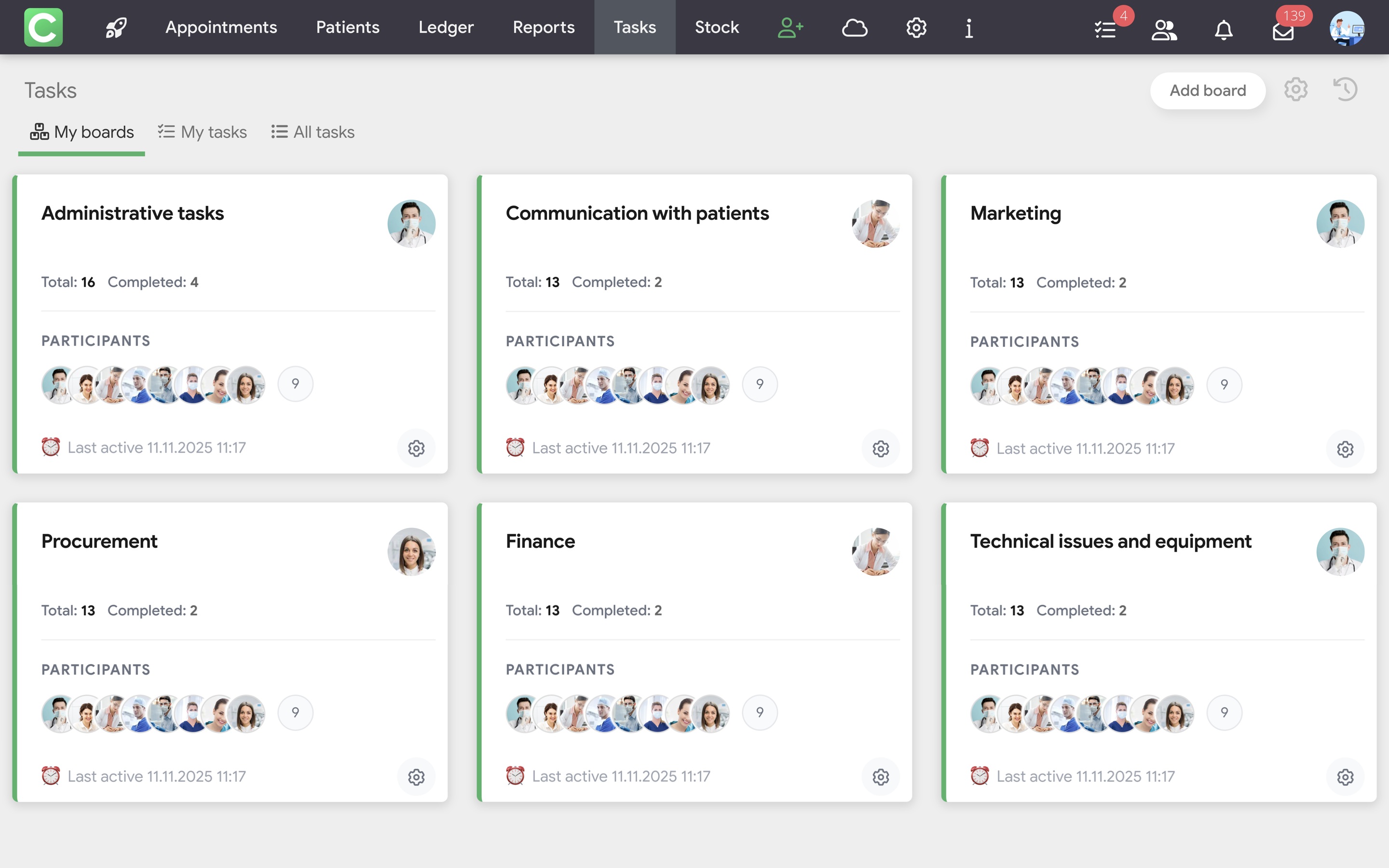
Test boards when activating the Task Manager
Please note that when you activate the Tasks module, two boards are automatically created:
These boards are test boards, as are all the tasks and comments on them. They are designed to demonstrate how working with Tasks might look in a real clinic.
Test boards can be:
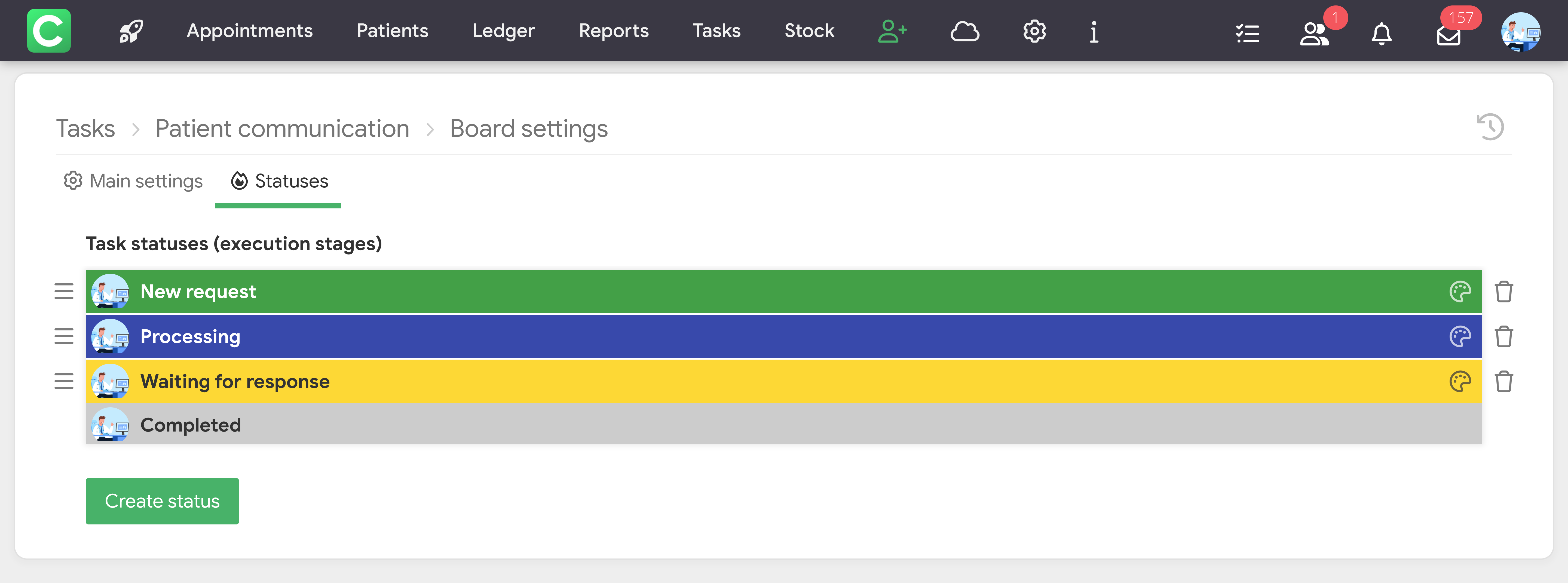
What are statuses
Statuses are columns on a Kanban board that reflect the stages of task completion. Tasks move between statuses depending on their progress.
Configuring statuses:
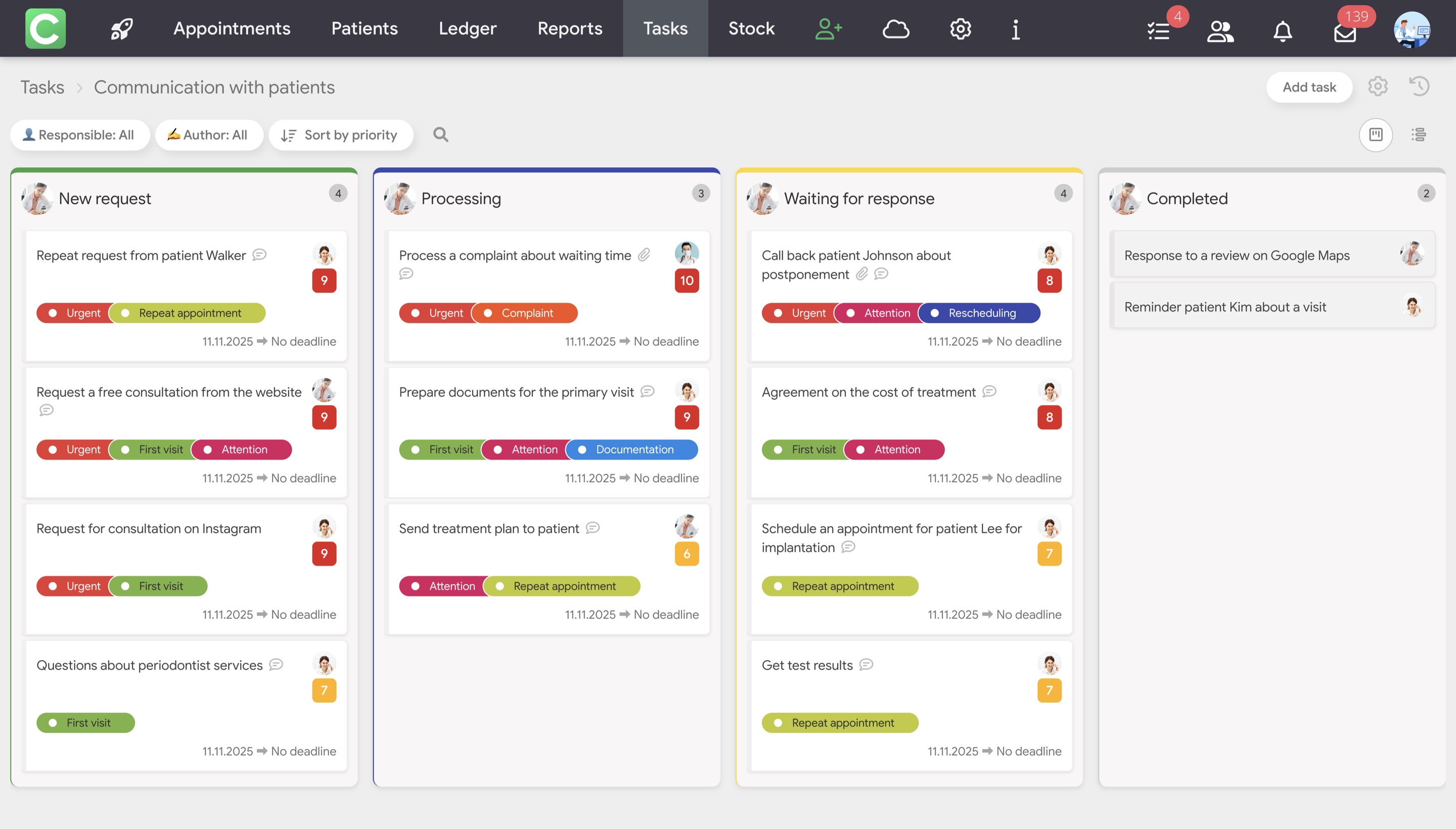
Viewing and navigation
There are three modes for viewing boards:
To switch between modes, use the buttons located in the right corner above the columns.
To create a task
Each task contains the following main fields:
When creating a task, you can immediately assign any status in the “Task status” field. This means that a new task can be created at any stage of the workflow.
When setting a task or later, you can specify the completion dates:
Or use the Quick Planning option:
Task description
In the description field, you can upload and save all important information about the task, for example:
Moving tasks
Drag and drop tasks between columns by holding down the left mouse button. The status is automatically updated according to the new position. When moved to the last column, the task is automatically marked as completed.
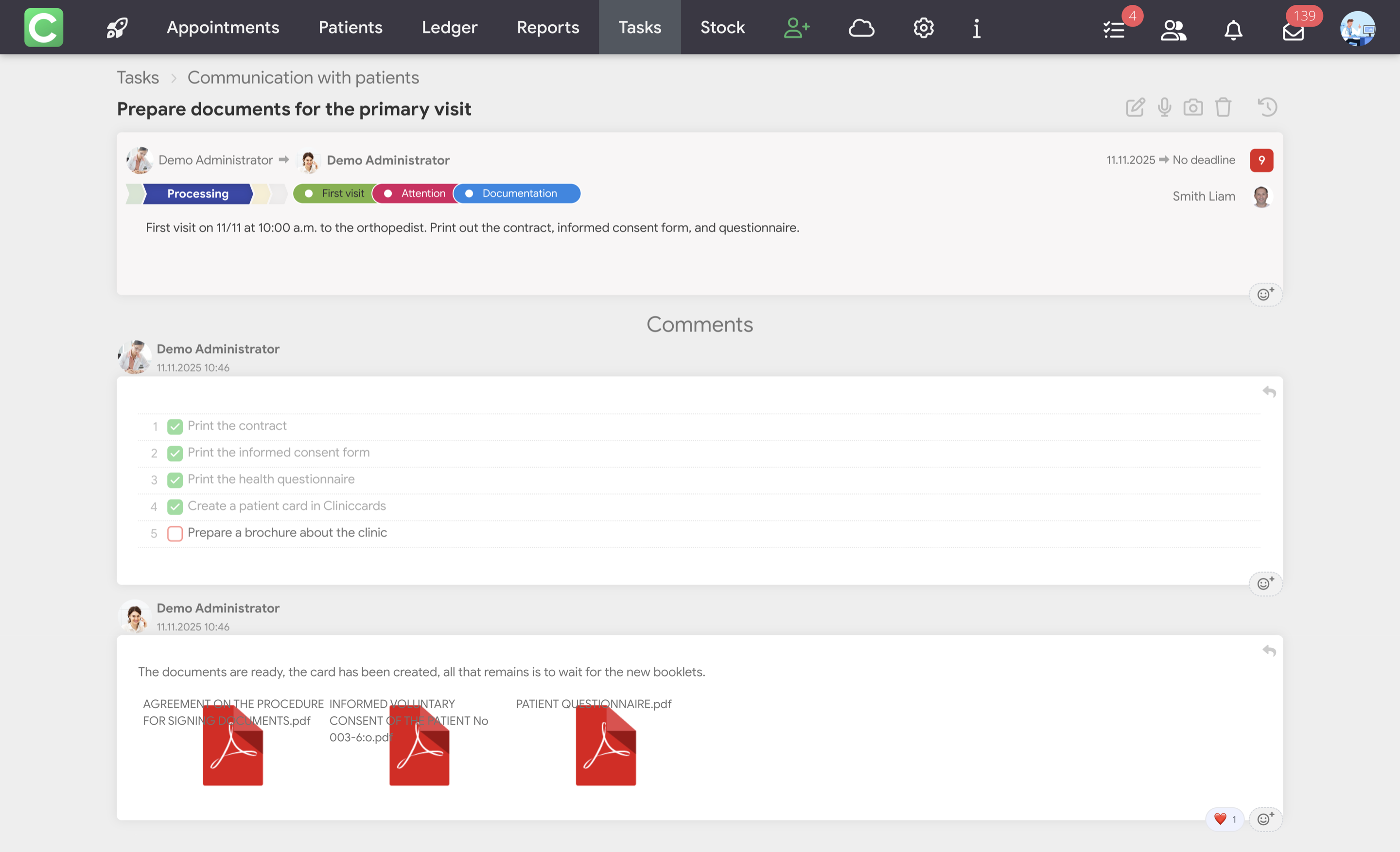
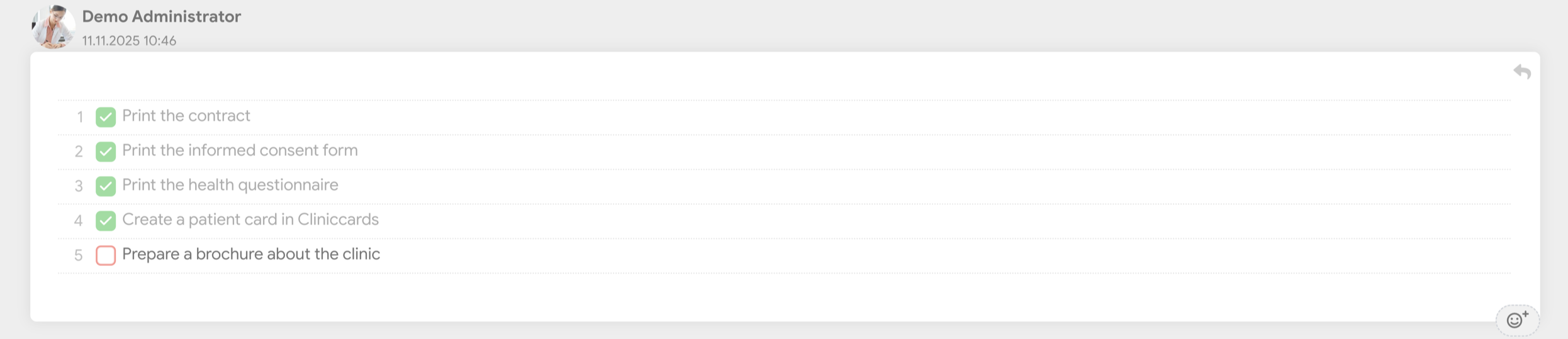
Creating checklists
To add a checklist to a task, follow these steps:
Tracking progress
The system automatically logs all actions with checklists and stores the following information:
This data is displayed in the Edit Log.
Helpful tips:
Comments in tasks
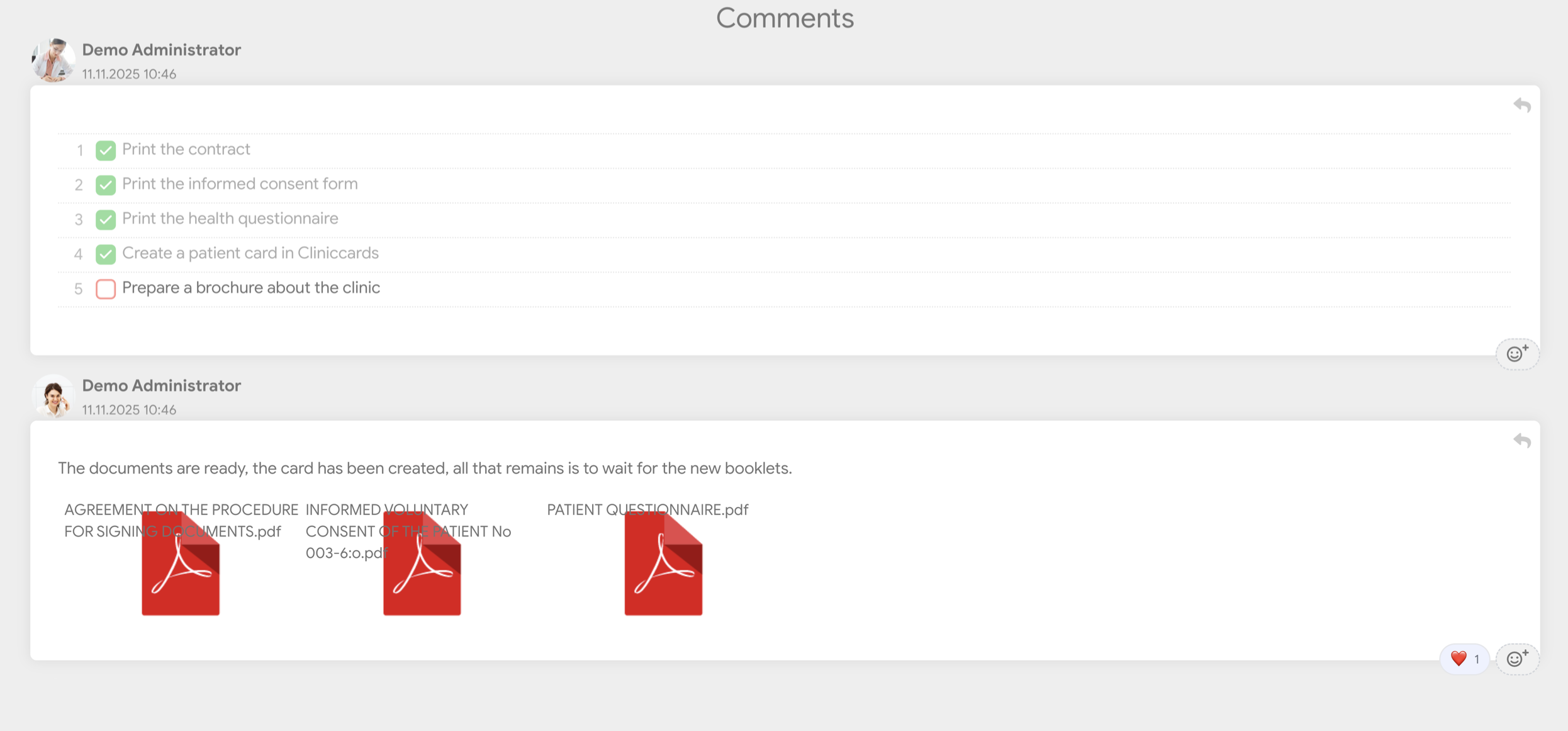
Each task has its own chat for discussing details. In comments, you can:
Notifications
The system automatically sends notifications in the following cases:
Boards
Boards are designed for working on specific projects. Key features:
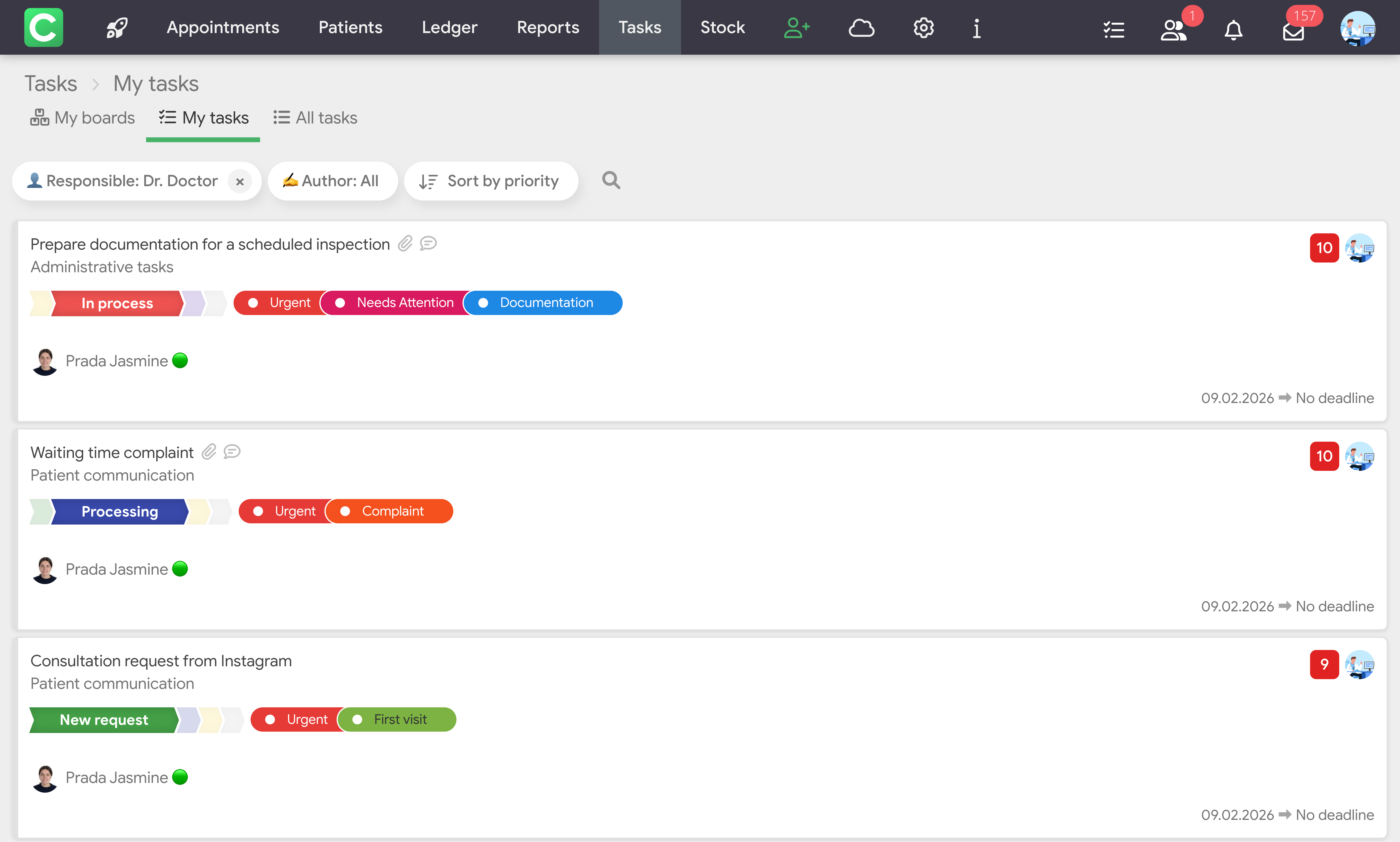
My tasks
This section displays all tasks for which you are responsible. Section features:
All tasks
General overview for managers with the following features:
In the Tasks section, tasks can be viewed not only as a board or list, but also in a calendar.
The calendar helps you see the team’s workload by day and quickly understand which tasks need to be completed today, within a specific period, or by a certain date.
To open the calendar:
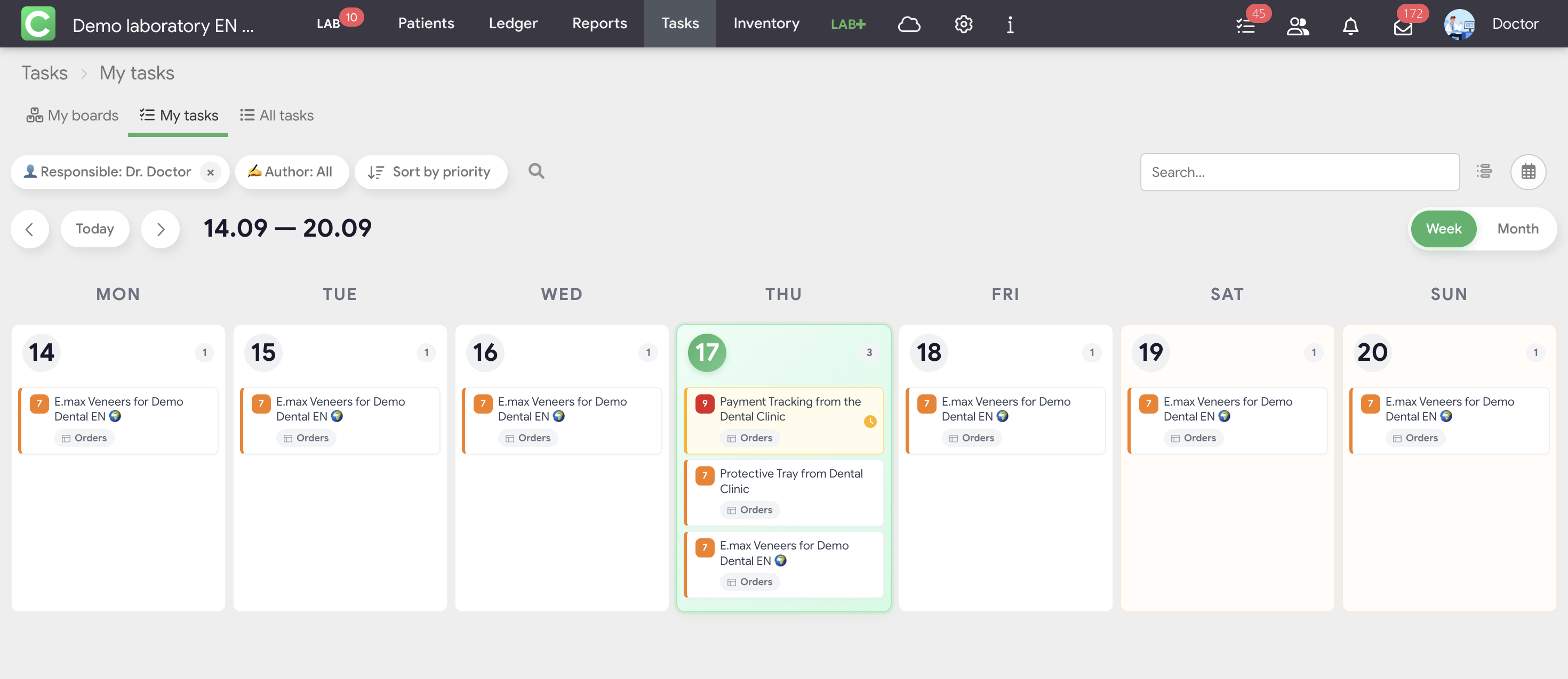
The calendar can be viewed in two modes:
If you open the calendar for a specific board, the Add Task button is also available at the top of the page.
In All Tasks, the calendar displays tasks from different boards. Tasks are also grouped by assignee.
How tasks appear in the calendar
How a task is displayed depends on the type of due date selected when the task is created or edited.
Three options are available:
If no due date is set for a task, an unfinished task is displayed on the current day. If it is not completed, it will appear on the new current day the following day.
This means that tasks without a due date remain visible in the calendar until they are completed.
A deadline means that the task must be completed by the specified date, not only on the deadline date itself.
For example, if the deadline is set to August 31, the task will be displayed in the calendar every day up to and including August 31.
If the deadline has passed and the task has not been completed, it will continue to appear every day until it is completed.
This allows you to keep the task visible throughout the entire period leading up to its completion.
This option is used when a task needs to be completed within a specific period.
Specify:
If needed, you can also set an exact time for both dates.
The task will be displayed in the calendar throughout the entire selected period.
If you need the task to be linked to one specific day only, set both the start date and the end date to that day and specify different start and end times.
Calendar filters
In Calendar View, you can use filters to display only the tasks you need.
You can filter by:
Additional display settings are also available:
This allows you to adjust the calendar to your workflow and avoid cluttering it with unnecessary information.
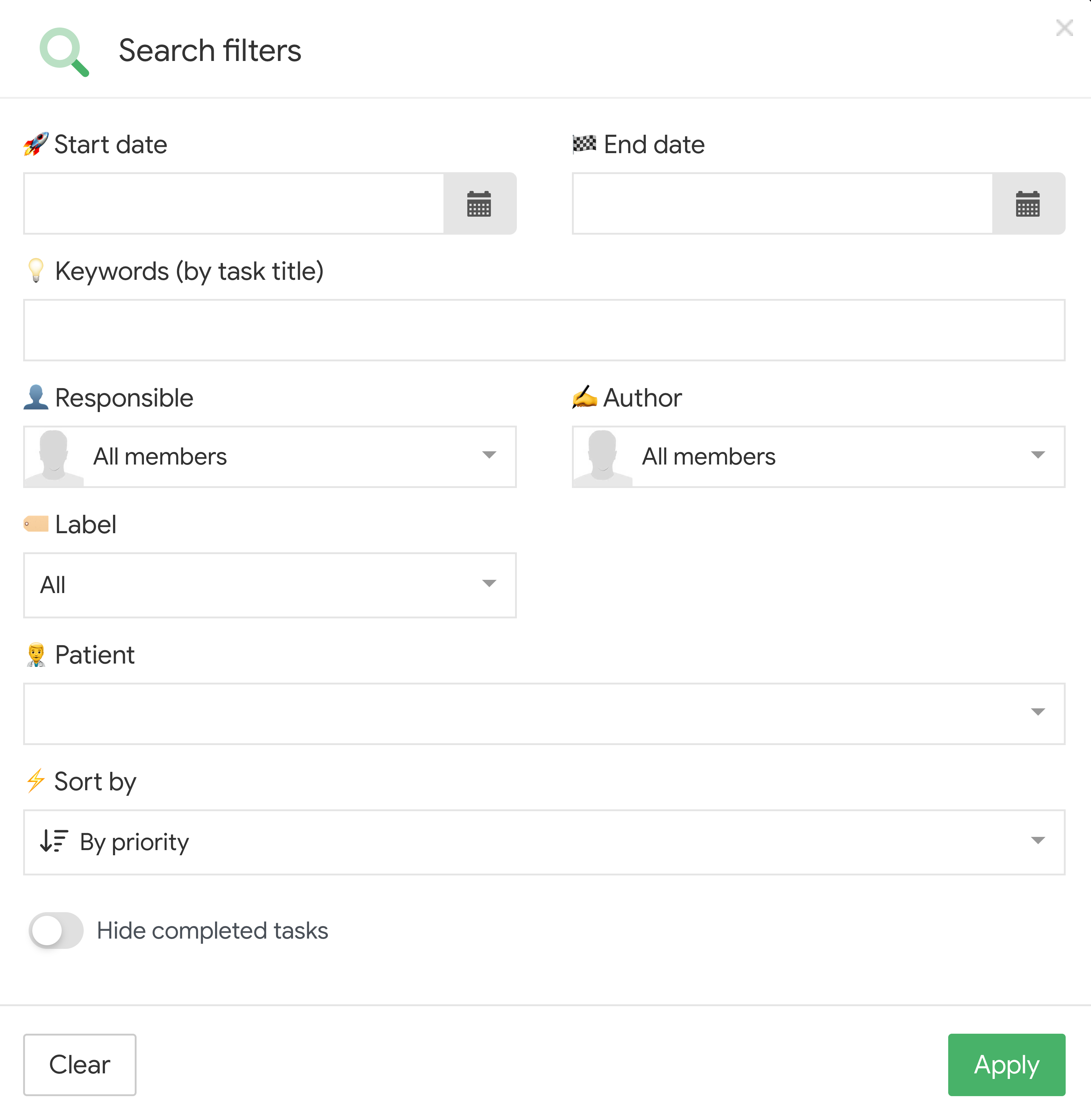
Filtering system
Find the tasks you need by various criteria:
Saving filters
Working with filters is organized as follows:
Results can be sorted by priority (high to low), creation date, and start/end date.
What are labels
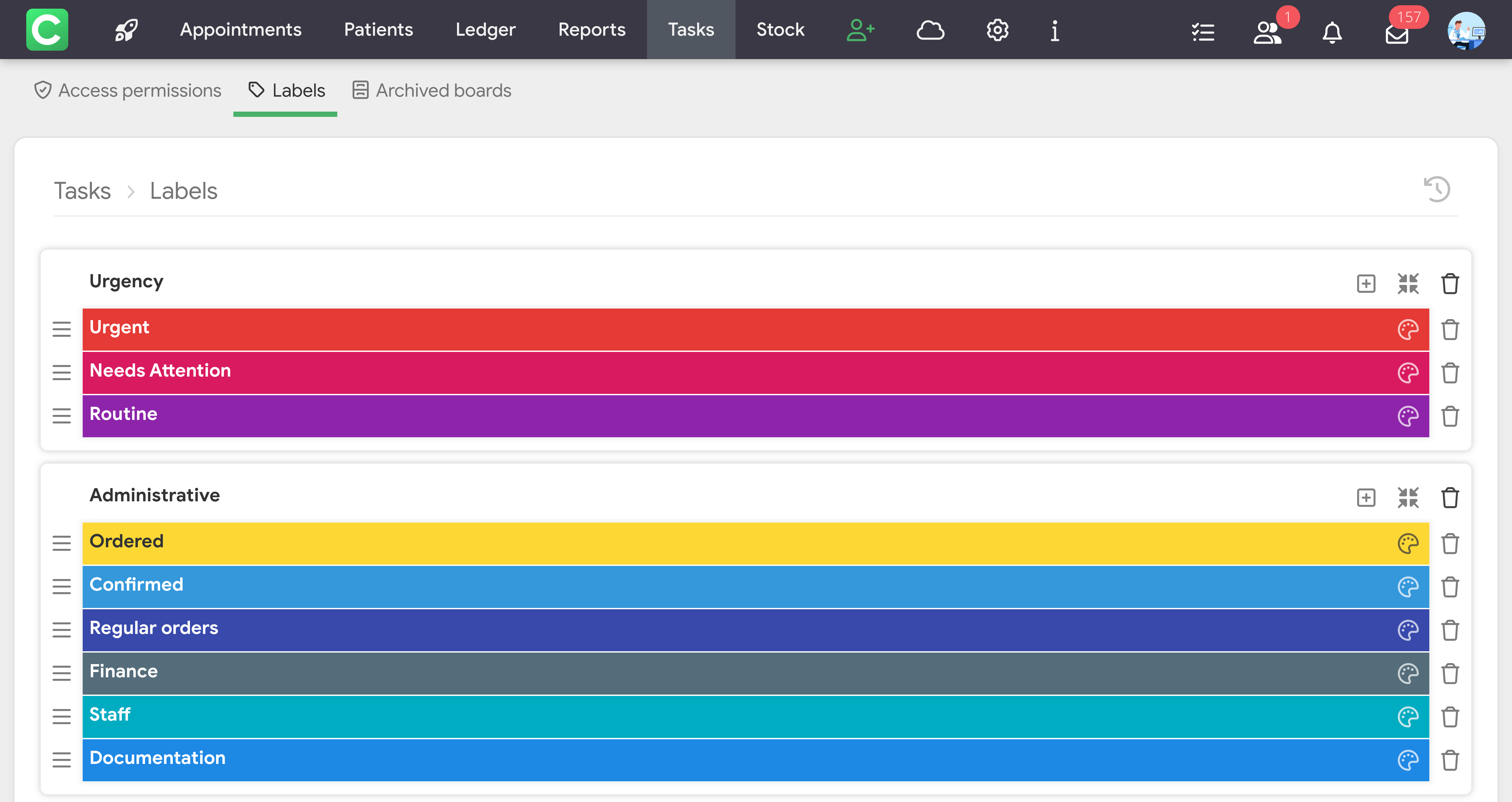
Labels are categories for organizing tasks. They help you quickly find similar tasks and analyze work processes.
Setting up labels
To create tags for your clinic, follow these steps:
Using labels
Labels allow you to organize your work effectively:
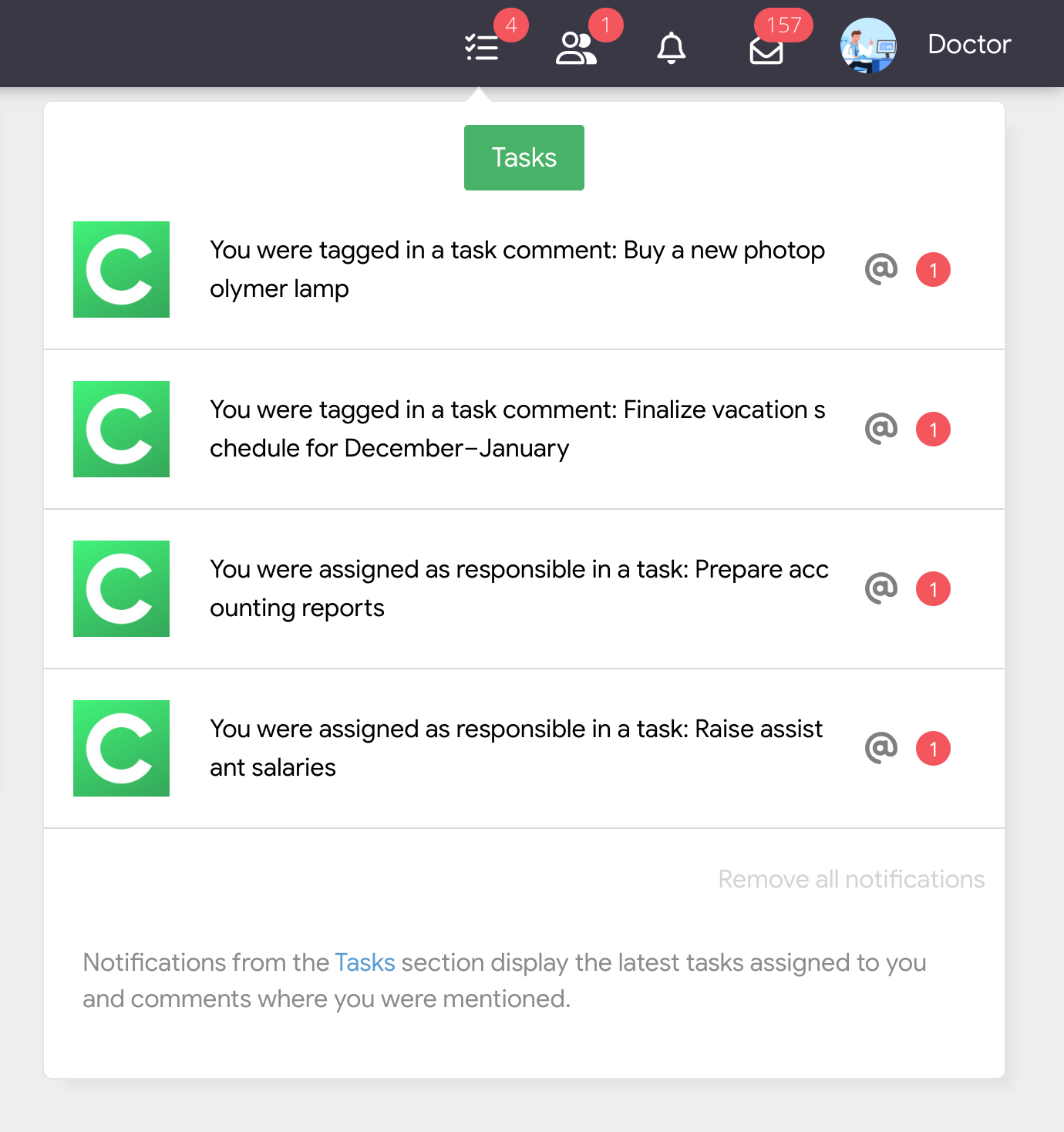
In the upper panel of Cliniccards, at the top right, there is a Task notifications icon. It shows all notifications related to tasks: assignments to responsible persons, mentions in comments, new comments, and other actions in tasks.
When you click on a specific notification:
This allows you to not miss important actions in tasks and quickly switch between clinics without manual switching.
Q: How many boards should I create? Start with 2-3 boards for the main areas of work. Add new ones as needed.
Q: How do I organize work between the clinic and the laboratory? Create separate boards for each department with their own statuses and processes.
Q: Can the author of a task be changed? No, the author remains unchanged. The person responsible can be changed at any time.
Q: What happens to overdue tasks? They are highlighted in the interface. The system does not block work, but shows the overdue status.
Q: Is the history of changes saved? Yes, all actions are logged in the Edit Log.
Tasks in Cliniccards are a powerful tool for organizing all work processes. Start with simple boards and gradually adapt the system to the needs of your clinic or laboratory. Regular use of the task manager will help you remember everything and keep all processes under control.