Access rights to Tasks
The Tasks module in Cliniccards has a flexible and intuitive access rights system based on teams.
Teams are a way to group employees by role or function (e.g., administrators, doctors, assistants) and manage access for the entire group at once, rather than for each user individually.
This means that a user gains access to the task list when they are added to a team with the appropriate rights.
There can be several teams in the system, for example:
- Managers
- Specialists
- Viewers
- Administrators
- Assistants
- Etc.
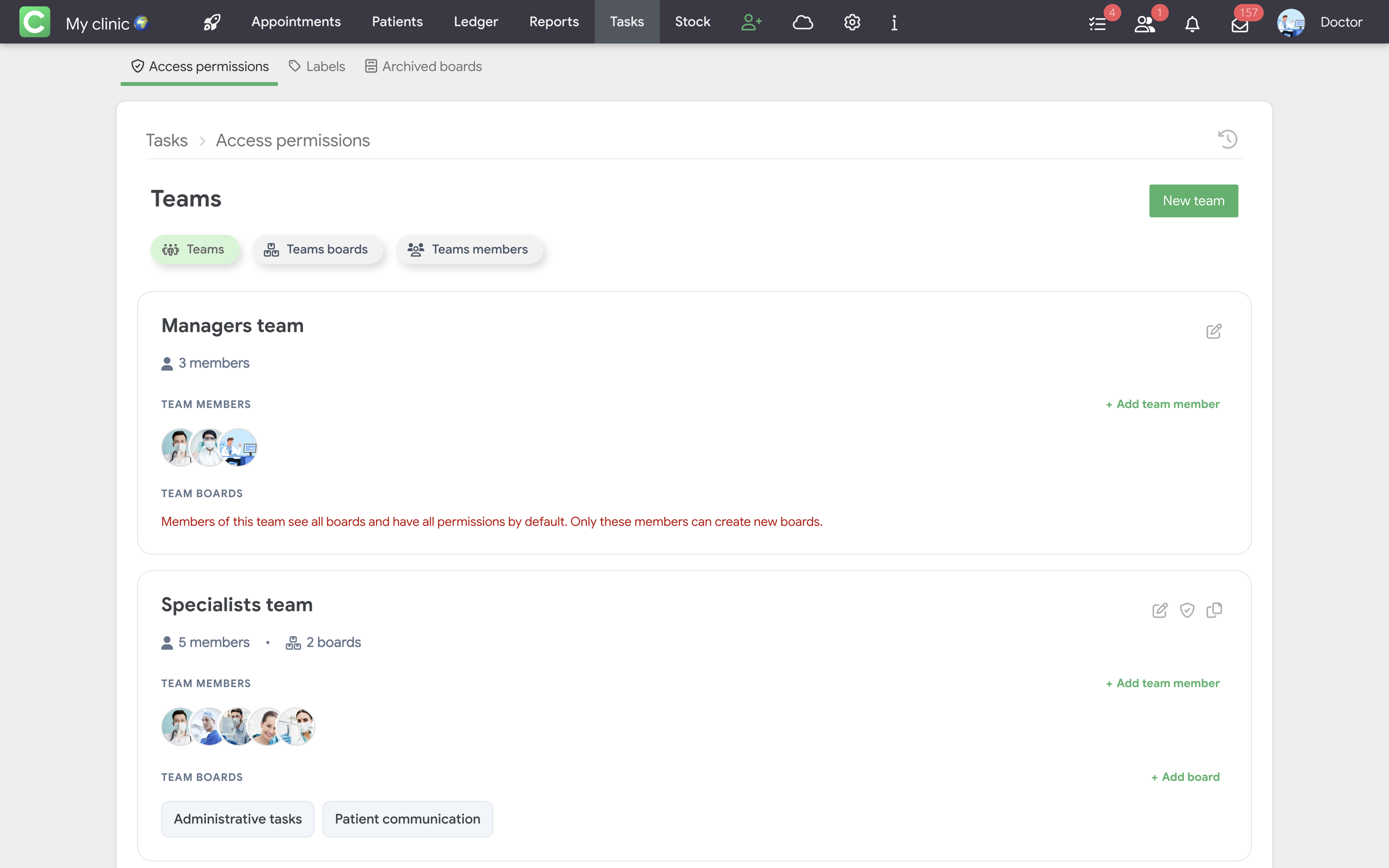
Working with teams
All actions with teams in Tasks are performed directly in the Tasks → Settings → Access Rights section. From here, you can manage the team composition, linked boards, and access rights.
Adding members to a team
To add a new user to a team:
- Find the desired team in the list.
- Click the + Add Team Member button.
- Select a user from the list.
After adding, the user automatically receives all access rights for this team.
Linking boards to a team
The team only sees the boards that are linked to it. To make the team see and work with a specific board:
- Find the desired team in the list.
- Click the + Add board button.
- Select a board from the list or create a new one.
This helps:
- divide tasks between different areas;
- avoid overload with unnecessary information.
Editing a team
The Edit team button is available in the upper right corner of the team card.
In edit mode, you can:
- change the team name;
- remove team members (if you have Manage rights permission);
- remove boards linked to the team (if you have Manage rights permission).
This allows you to quickly update the team's composition or its area of responsibility.
Copying a team
To quickly create a new team with similar access and composition to an existing one:
- Open the desired team.
- Click the Copy Team button in the upper right corner.
The copied team will have the same:
- access rights;
- boards linked to it.
After that, you can change the team name, membership, or linked boards.
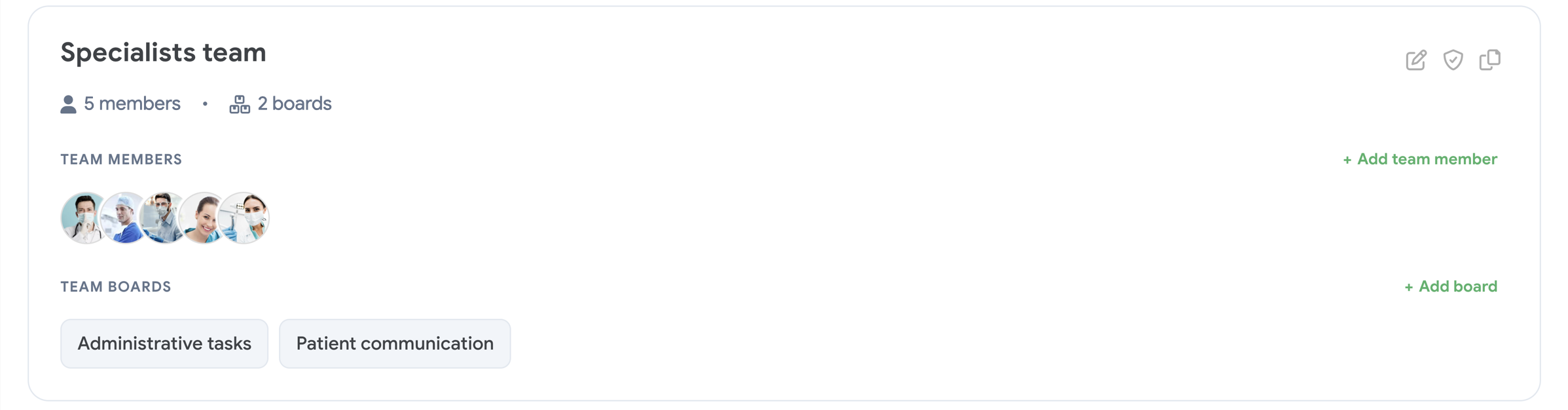
Automatic commands when activating Tasks
After activating the Tasks module, three teams are automatically created in the system. They are needed for a quick start and to demonstrate the logic of working with access rights.
Managers team
The management team has full access to Tasks by default. Members of this team can:
- view all boards;
- create, edit, and delete boards;
- manage teams and access;
- work with labels;
- change Task settings.
Important:
- it is not possible to remove or restrict access or any boards for this team;
- when Tasks are activated, the clinic owner and super administrators are automatically added to the team if the clinic has specialists with such access rights;
- Assigning the Super Administrator role in the Access Rights section after activating Tasks does not automatically add the user to the management team – these are separate settings.
Specialists team
The team of specialists has basic access to Tasks and extended rights to work with boards.
Members of this team can:
- view boards linked to them;
- create and edit tasks;
- work with statuses;
- add and change labels;
- set deadlines;
- assign executors;
- leave comments.
This team is suitable for doctors, assistants, administrators – anyone who actively works with tasks but does not manage system settings.
Viewers team
The viewers team has minimal access. Members of this team can only view Tasks and boards to which they have basic access.
Members of this team cannot:
- create or edit tasks;
- change statuses, labels, or assignees;
- leave comments.
This team is useful for users who only need to stay informed about processes.
Changing standard teams
- The names of standard teams can be changed.
- If necessary, you can create new teams with their own set of rights.
- The number of teams is not limited.
This allows you to adapt Tasks to the structure of your clinic.
Configuring command access rights
To manage team permissions, use the Team access rights button located in the upper right corner of the team card.
Here you can define:
- general access permissions to Tasks;
- the ability to manage boards;
- working with labels;
- managing other users' access.
Rights are divided into two levels:
- General permissions
- Board permissions
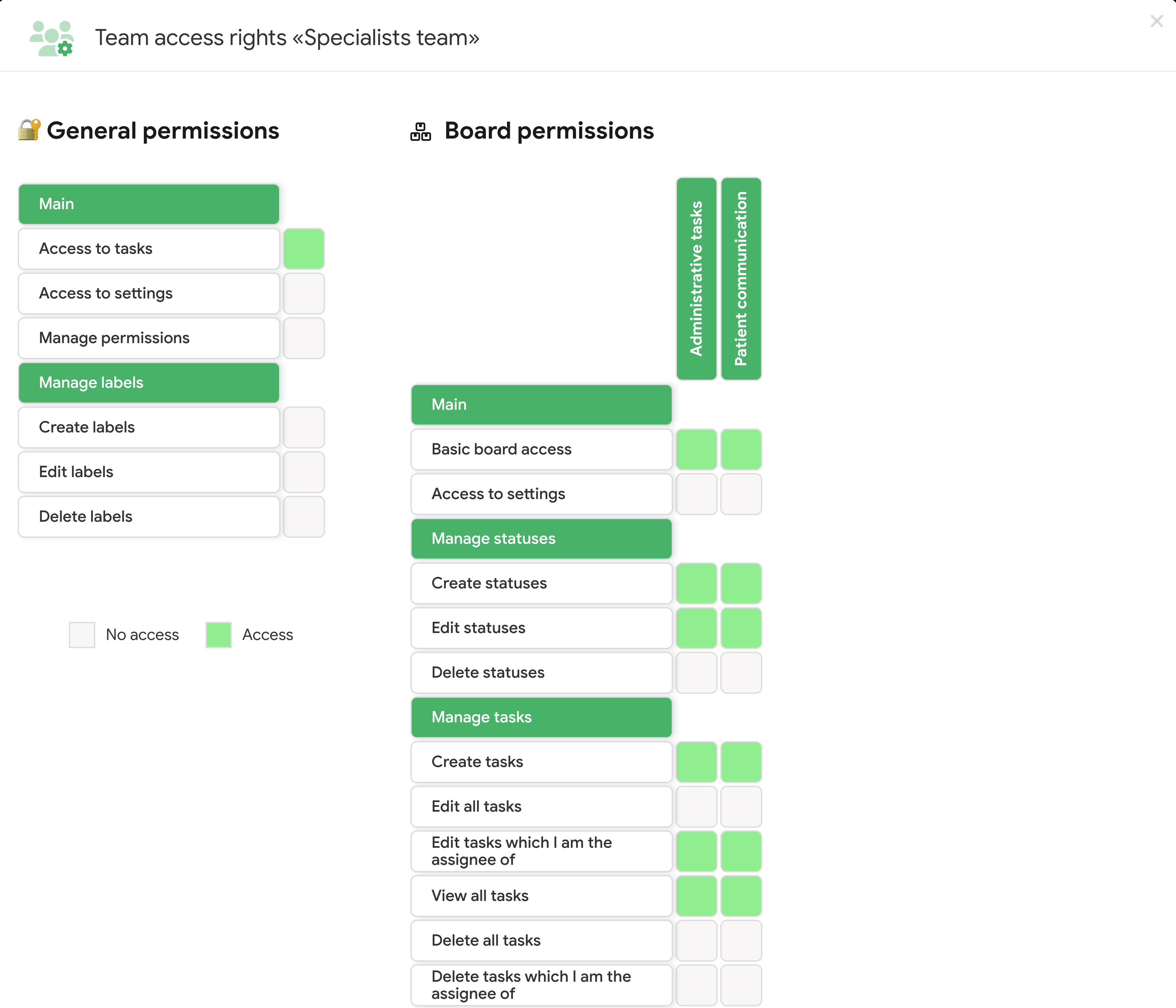
General permissions
These rights determine whether an employee has access to the Tasks module in general and to its global settings.
Main
- Access to task – allows employees to view the Tasks, Teams, Boards, and Assignments modules in accordance with other rights granted. Without this access, Tasks will be completely unavailable.
- Access to settings – allows you to open Task settings: view teams, boards, and their parameters. Does not grant the right to change other users' access rights.
- Manage permissions – allows you to configure access rights for teams, change other users' permissions, and manage the access structure in Tasks. It is recommended to grant this right only to managers or responsible persons.
Manage labels
- Create labels – allows you to create new labels for tasks (for example: Urgent, Awaiting confirmation, Payment).
- Edit labels – allows you to change the names and colors of existing labels.
- Delete labels – allows you to completely delete labels from Tasks.
Board permissions
These rights are configured separately for each board (for example: Administrative tasks, Communication with patients).
Boards are displayed vertically, and rights are displayed horizontally, allowing for flexible access management.
Main
- Basic board access – basic (primary) access rights to the board, which determines the ability to interact with it in accordance with other permissions. Without this access, the board will be completely inaccessible to the team.
- Access to settings – allows you to change the settings of a specific board, namely the name, responsible specialist, and board statuses.
Manage statuses
- Create statuses – allows you to add new statuses (columns) to the board.
- Edit statuses – allows you to change the names or order of statuses.
- Delete statuses – allows you to completely delete statuses from the board.
Manage tasks
- Create tasks – allows you to add new tasks to the board.
- Edit all tasks – allows you to change any tasks regardless of who is responsible for them.
- Edit tasks which I am the assignee of – allows you to edit only your own tasks.
- View all tasks – allows you to see all tasks on the board.
- Delete all tasks – allows you to delete any tasks.
- Delete tasks which I am the assignee of – allows you to delete only your own tasks.
Task statuses
- Change task statuses – allows you to move any tasks between statuses.
- Change statuses of tasks which I am the assignee of – allows you to change the status of only your own tasks.
Task labels
- Change labels of all tasks – allows you to add or change tags in any tasks.
- Change labels of tasks which I am the assignee of – allows you to work with tags only in your own tasks.
Task priority
- Change the priority of all tasks – allows you to change the priority of any tasks.
- Change priority of tasks which I am the assignee of – allows you to change the priority of only your own tasks.
Task due date
- Change due date of all tasks – allows you to change the deadline of any task on the board.
- Change due date of tasks which I am the assignee of – allows you to change the deadlines only for those tasks for which the user is responsible.
Manage assignees
- Change the assignee for all tasks – allows you to assign or change executors in any tasks.
- Edit assignee for the tasks I am the assignee of – allows you to transfer only your tasks to another employee.
Comments
- Comment all tasks – allows you to leave comments under any tasks.
- Comment tasks which I am the assignee of – allows you to comment only on your own tasks.
- Delete all comments – allows you to delete other users' comments.
- Delete your own comments – allows you to delete only your own comments.