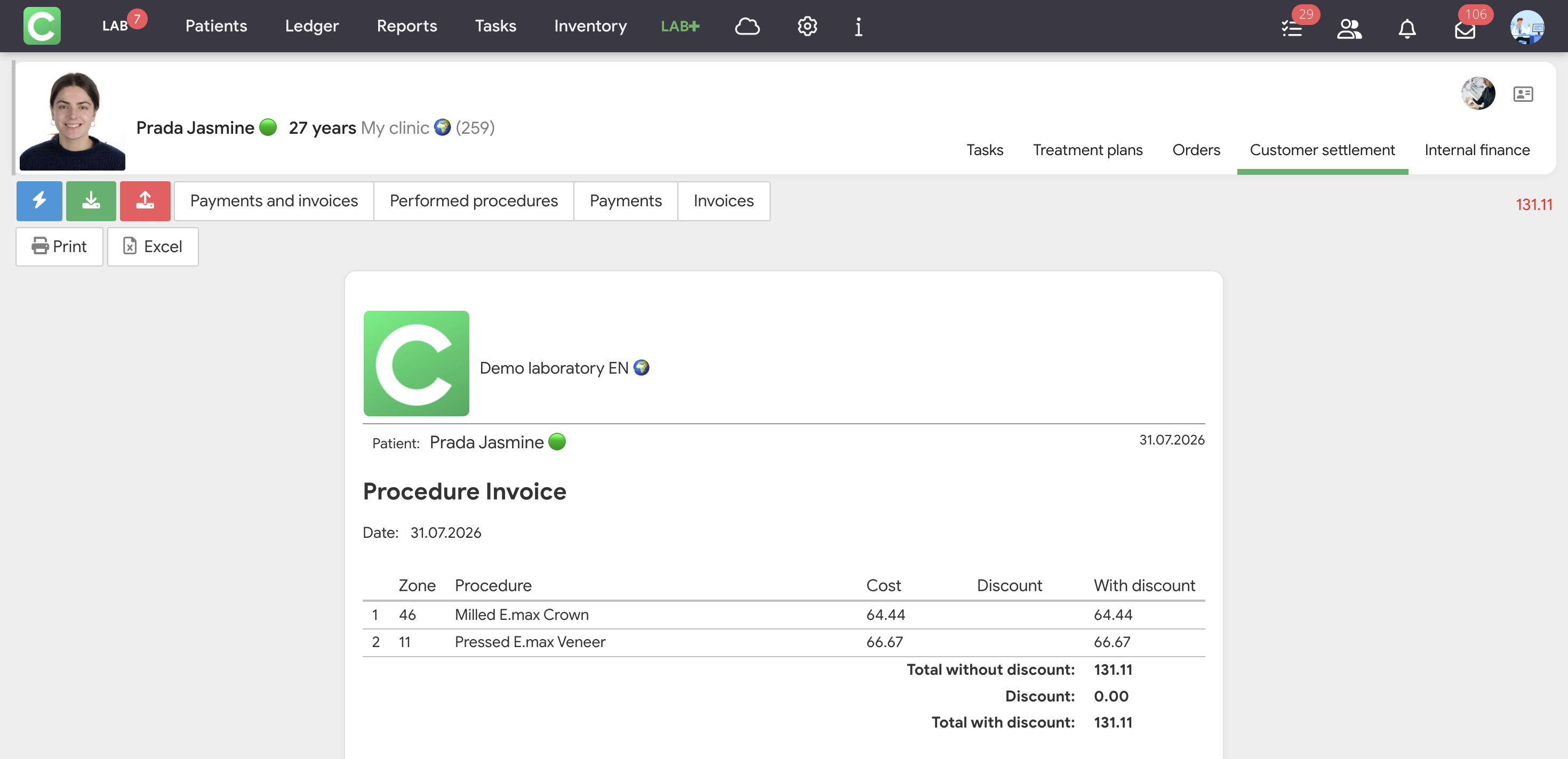
When the work is completed (or partially completed), there are two ways to settle the payment with the customer clinic:
Each method has its features and advantages. To create a performed procedures invoice from a treatment plan, treatment history, or task, follow these steps:
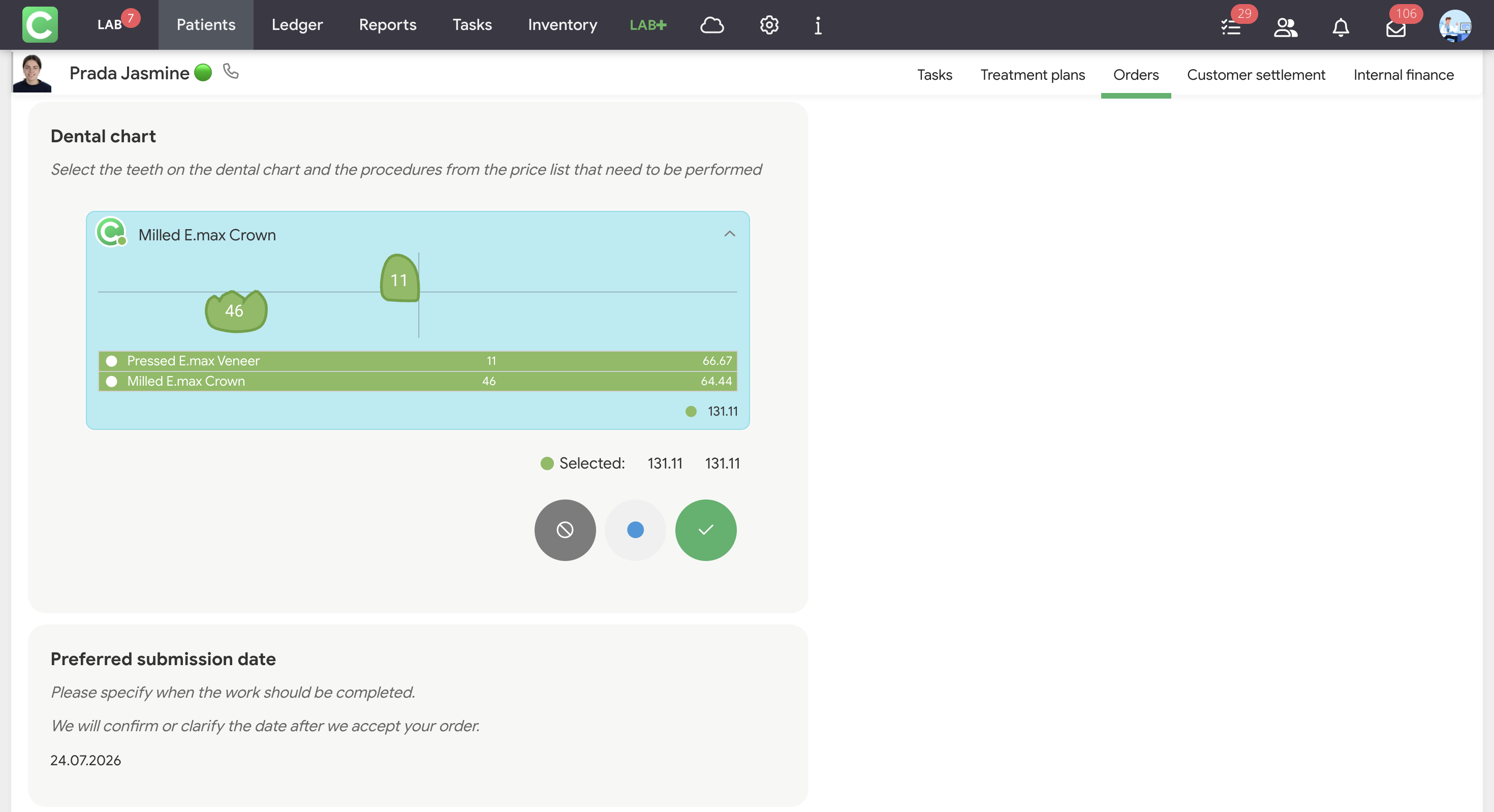
To create a fast invoice, follow these steps:

The logic for working with invoices and payments is standard for Cliniccards. You can learn more about it in the Manual section under Ledger.
Material write-off
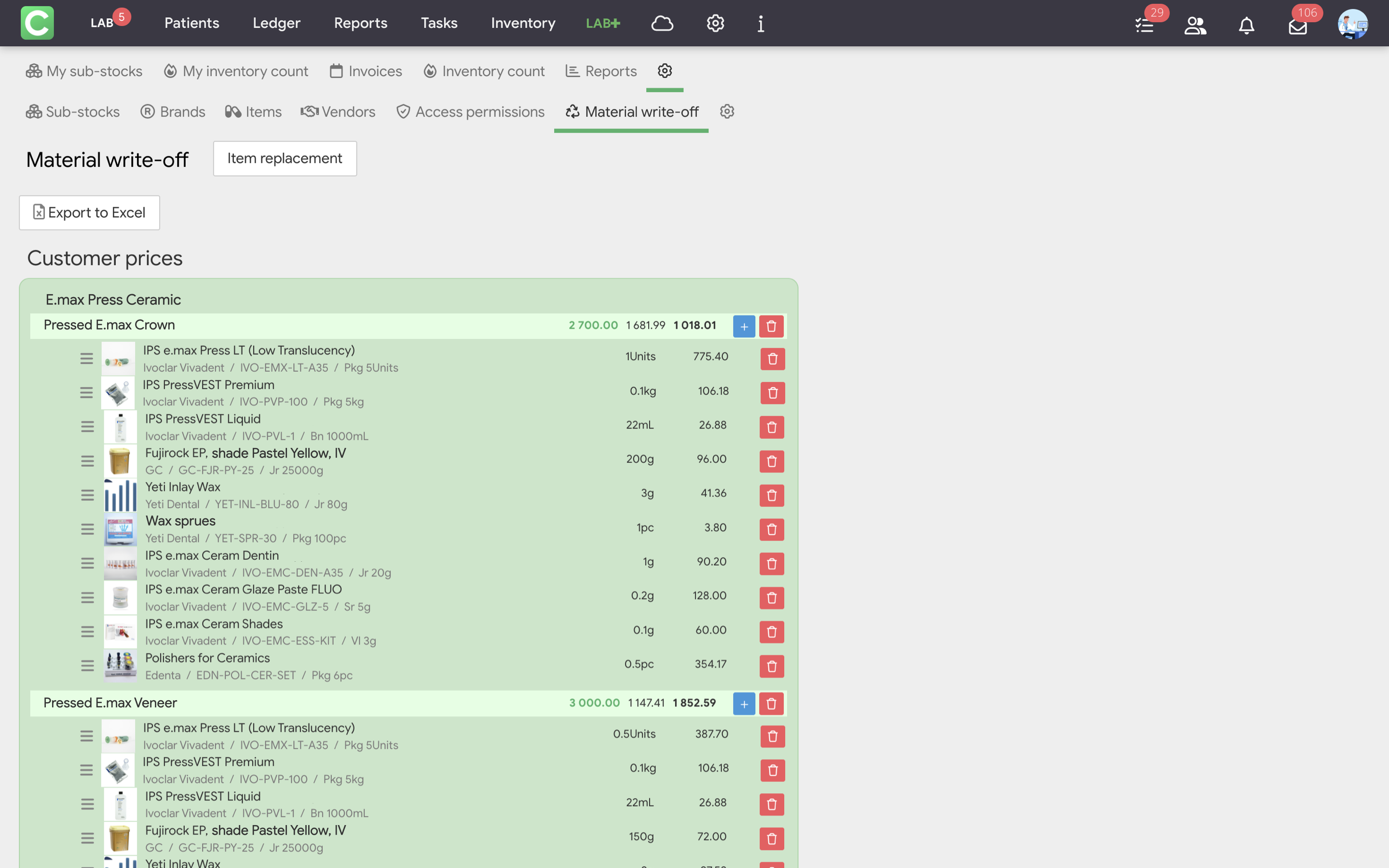
If your laboratory uses the Inventory module, you can configure automatic write-off of materials for completed procedures.
The principle is the same as in the clinic: for each item in the fee list, a cost calculation card is created – a list of materials consumed to perform this procedure. After saving the work order, materials are written off from the warehouse automatically or manually, depending on the selected write-off type.
Three write-off types are available:
The write-off type is selected in the Inventory → Settings → Additional inventory settings → Automatic write-off type option.
Option to Link payments to the performed procedures invoices
Linking payments to performed procedures invoices allows you to decide which invoice a particular payment belongs to. For laboratories, this option is enabled by default.
This is essential for accurate calculations: if a payment is not linked to a specific invoice, the system cannot determine how much has been paid for a specific order, and the Completed – Paid calculation will not work correctly.
How to link a payment to an invoice:
We recommend training your team so that this process becomes second nature to all employees. Otherwise, discrepancies may appear in reports.