Creating a Laboratory
There are two ways to register with Cliniccards as a laboratory.
Method 1. Separate laboratory registration on the website
The Cliniccards website has a separate section for dental laboratories with their registration process. The following users can register in this section:
- Laboratory owner – immediately receives the PRO version with full Laboratory functionality.
Please note: For new users of the PRO version, the full functionality of the service is available FREE OF CHARGE for 14 days. After this period ends, an invoice is generated based on the number of facility members.
- Technician – receives the FREE version with access to the Patients module. Technicians can receive orders only with the PRO version.
Method 2. Creating a laboratory from an existing Cliniccards account
If you already have a Cliniccards account:
- Click on your name in the top bar (on the left).
- In the profile menu, scroll all the way to the bottom. Below the Create facility button, you’ll see the Create laboratory button.
- Click Create laboratory.
- Fill in the basic information.
- Save.
At any time, the owner can edit the clinic’s basic information in the Settings → Facility profile section:
- name;
- logo;
- contact information (website, email, phone number, address).
Once the lab is created, you’ll have full access to all the features of the Cliniccards service.
To fully utilize Cliniccards, you must also add your lab’s staff members and configure access rights for each of them.
To implement additional security measures, we recommend restricting access to the lab for users who do not have two-factor authentication enabled for logging into the Cliniccards system. This authentication method provides an additional layer of protection for the facility’s data and can be set up by the user independently in their personal profile. You can learn more about two-factor authentication in Cliniccards by following this link.
Cliniccards offers the option to automatically create a backup (mirror) copy of your laboratory’s data on an Amazon S3 server. This copy will be created once a day, at the end of each business day, by transferring the data in encrypted form over a secure HTTPS channel. This is an additional way to protect your information, storing your data on an external storage medium with the highest level of security. For more details on this feature and how to set it up, see the Manual section Your clinic backup on the Amazon S3 server
You can delete a lab using the button at the bottom of the page:
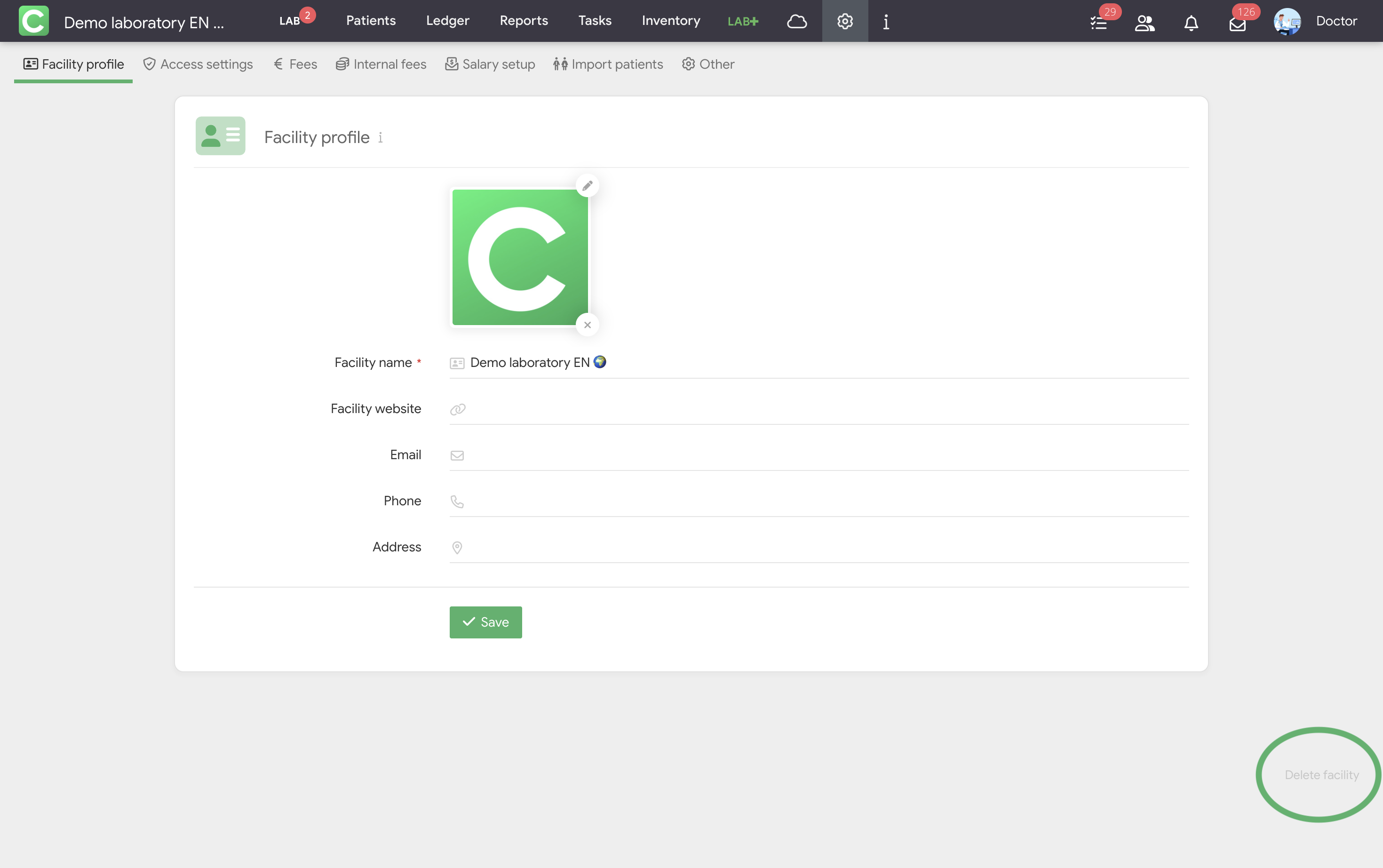
Please note that for additional data protection, this option is available only if the lab has fewer than 40 patients. To delete a facility with more than 40 patients, please contact Cliniccards technical support.