Once a laboratory has been added to the list of partner laboratories and the specialist has the appropriate permissions enabled, you can create orders. To do this:
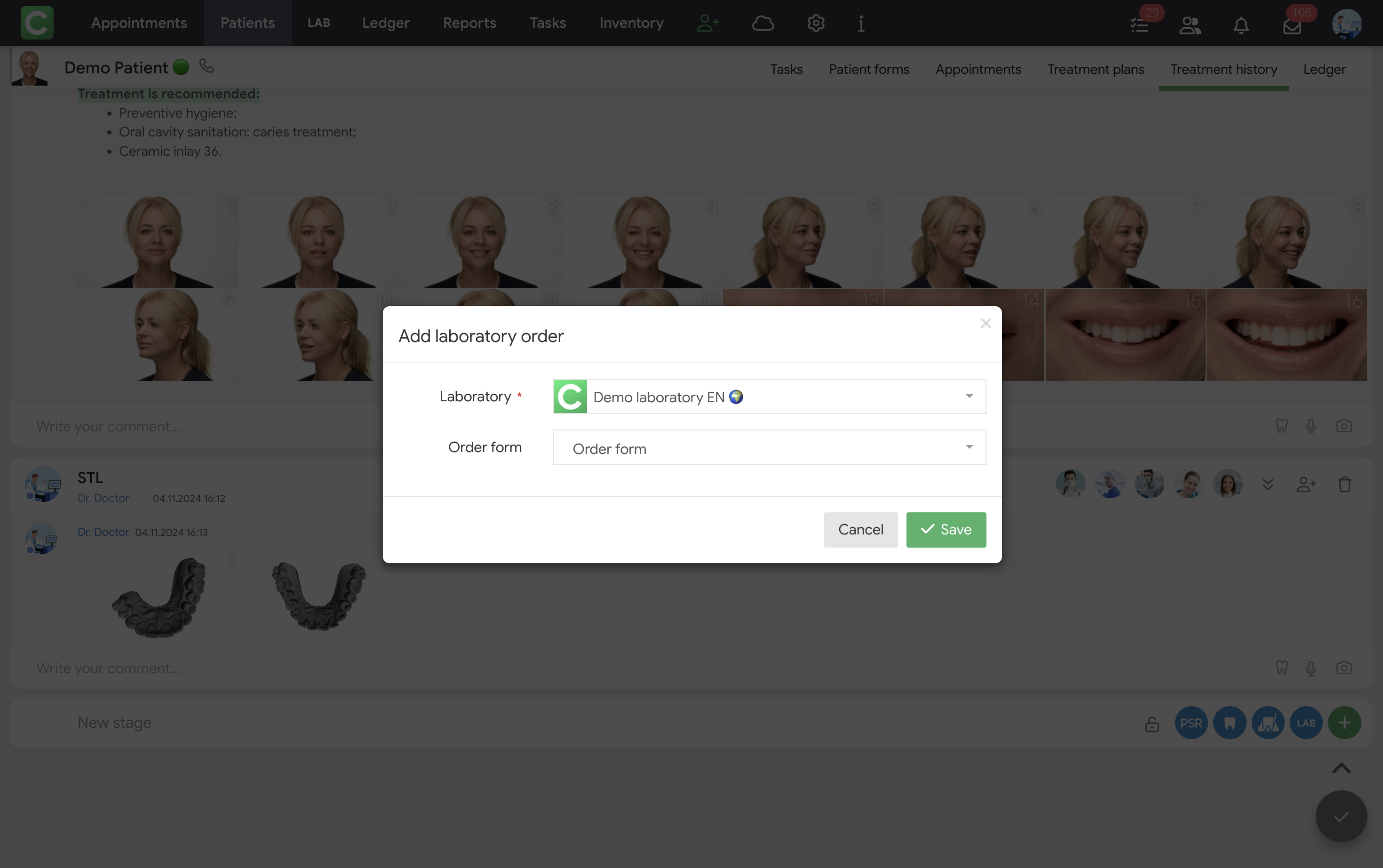
The order immediately appears in the lab and is saved in your patient’s card under Treatment history with full details: status, amount, date, and the lab performing the work.
What you can and cannot edit
If you need to change something after the order has been accepted, we recommend writing a comment under the order. The lab can then make the changes on its end.
Tracking order status
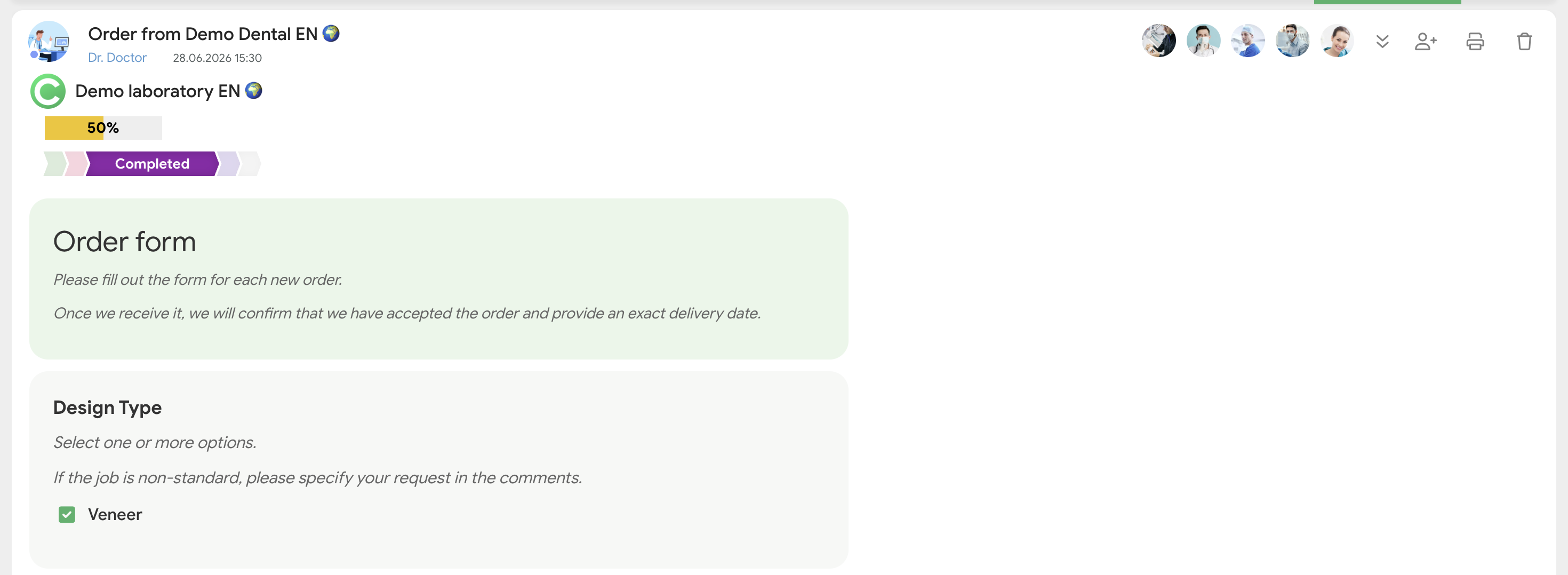
Once the lab has accepted the order, you’ll see all the statuses the lab has assigned to it. These may include statuses such as New, Accepted, Completed, and so on.
The statuses are displayed as badges above the order in your patient profile. This means you can see at a glance: what stage the work is at, what material it’s made from, and whether it has priority. In addition to the statuses themselves, the task completion percentage is also visible above the order – indicating how far the lab has progressed within the current stage.
How to view the status:
If you need to clarify anything with the lab, use the comment field below the order.
Tracking task status
Once the lab has accepted the order and created a task to fulfill it, you’ll receive an acceptance notification, and an additional status toggle – a colored bar showing the stages – will appear above the order.
The current stage is highlighted in an active color. The statuses reflect the actual progress of work in the lab. For example: accepted → modeling → casting → ready for shipment. The specific status names depend on how the corresponding board is configured in the lab’s Tasks module.