Before any specialists can work with dental laboratories, the clinic owner must enable the appropriate access rights for them. To complete this, go to Settings → Access settings and select the staff member you want to grant access to. In the list of rights, find the Laboratory category.
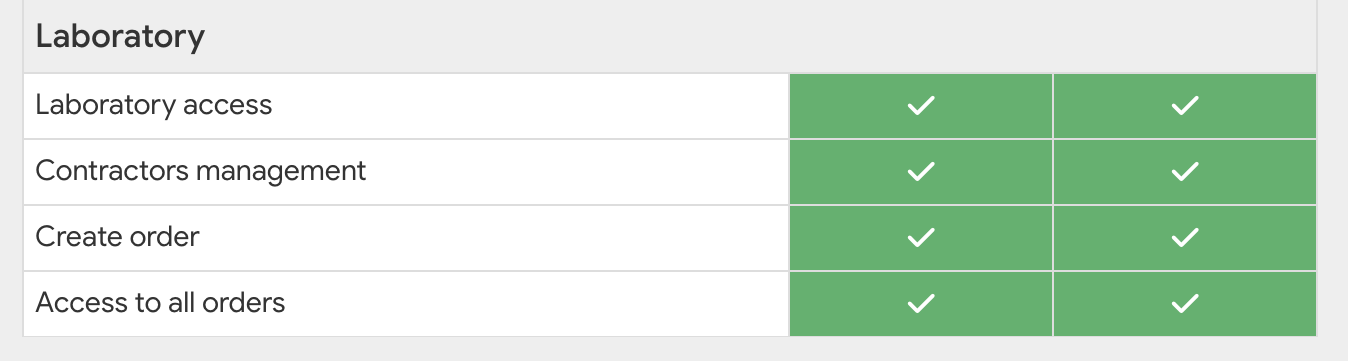
There are four access rights available in this category:
1) Laboratory access
This basic access right allows you to enable or disable all laboratory-related functionality for a specialist.
If this access right is granted to a specialist, the Orders module (or LAB on smaller screens) appears in the facility’s top panel, displaying orders sent to laboratories and a list of partner laboratories. The specialist can also view laboratory orders in patient cards and the statuses of those orders.
If this access right is not granted to a specialist, the functionality for working with laboratories is hidden from them. The Orders (LAB) module does not appear in the top panel, and laboratory orders are not visible in patient cards.
2) Contractors management
This access right grants the specialist access to the Sent orders report, which is also a section within the Orders (LAB) module, as well as the ability to edit the clinic’s list of partner laboratories.
If this access right is active, the specialist not only sees the Sent orders section in the Orders (LAB) module but can also:
If this access right is restricted, the Contractors section is hidden. The specialist can work with existing laboratories (send orders, view statuses) but cannot add new ones, edit, or delete them.
This access right is typically granted only to clinic managers and is restricted for providers and assistants.
3) Create orders
This access right grants or revokes the ability to create orders for a laboratory from a patient’s card.
If this access right is active, the specialist sees a blue LAB button in the patient’s Orders tab (next to the  button for adding a new stage). By clicking it, the specialist can create a new order with one of the clinic’s partner laboratories: select the laboratory, choose the order form, fill out the form fields, and attach files.
If this access right is restricted, the LAB button is hidden, and the specialist cannot create laboratory orders, even if they have Laboratory access.
We recommend granting this permission to providers who regularly work in prosthodontics, orthodontics, and other specialties that involve collaboration with a dental laboratory.
4) Access to all orders
This permission grants or revokes the ability to view all the clinic’s orders in the Orders (LAB) module, not just their own.
If this access right is active, the specialist sees all orders sent by the clinic to the lab in the Orders (LAB) module, regardless of which doctor created the order.
If this access right is restricted, the specialist sees only the orders they created themselves in the Orders (LAB) module. Orders created by other doctors at the clinic are hidden from them.
This access right is typically granted to the front staff who need to monitor the entire volume of orders. For doctors who work only with their patients, this right is usually restricted.
You can learn more about working with access rights in the Manual section Access rights.