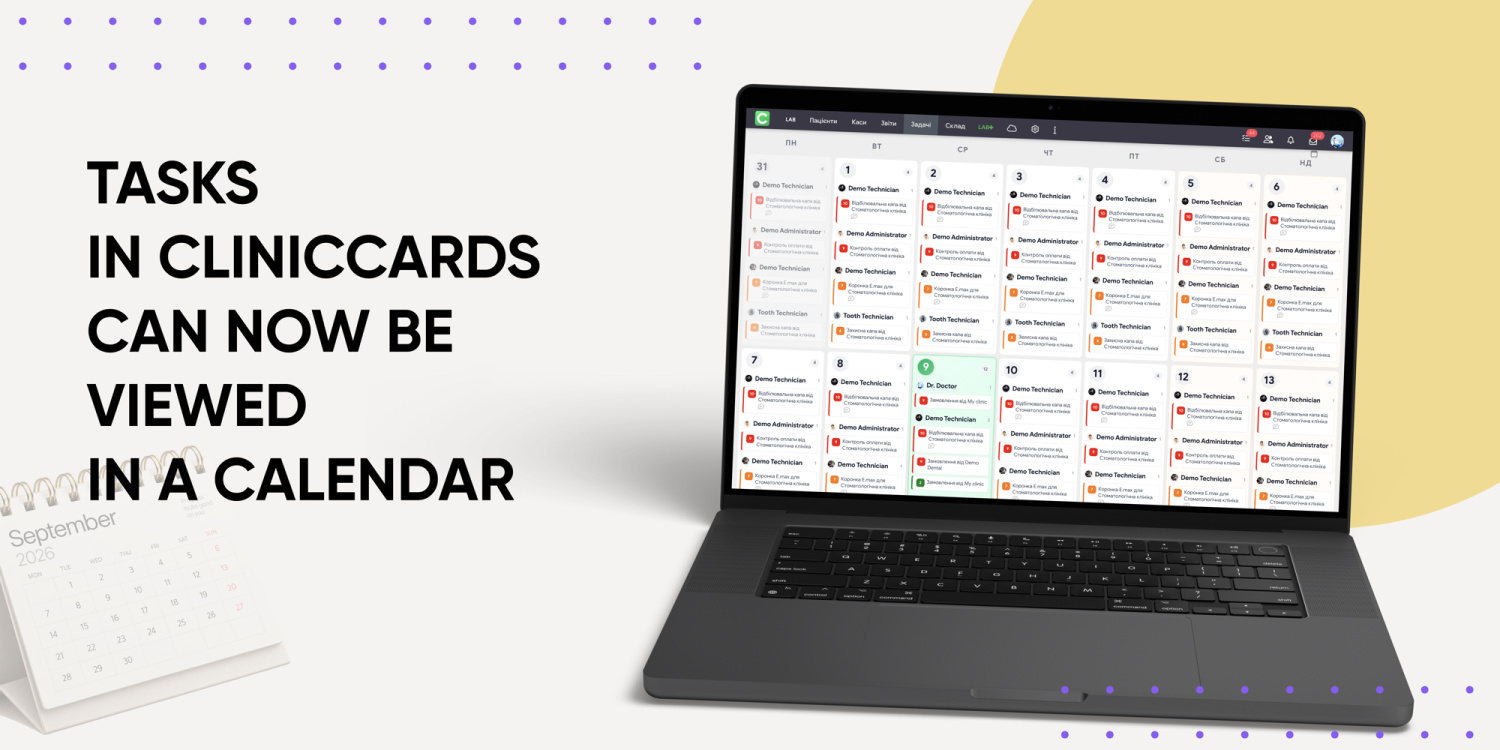
Cliniccards now offers a new way to work with tasks — Calendar View.
You can now see your team’s tasks by day, week, or month and quickly understand what needs to be done today, which tasks have upcoming deadlines, and which ones are scheduled for a specific period.
Calendar View is available both for individual boards and in the All Tasks section.
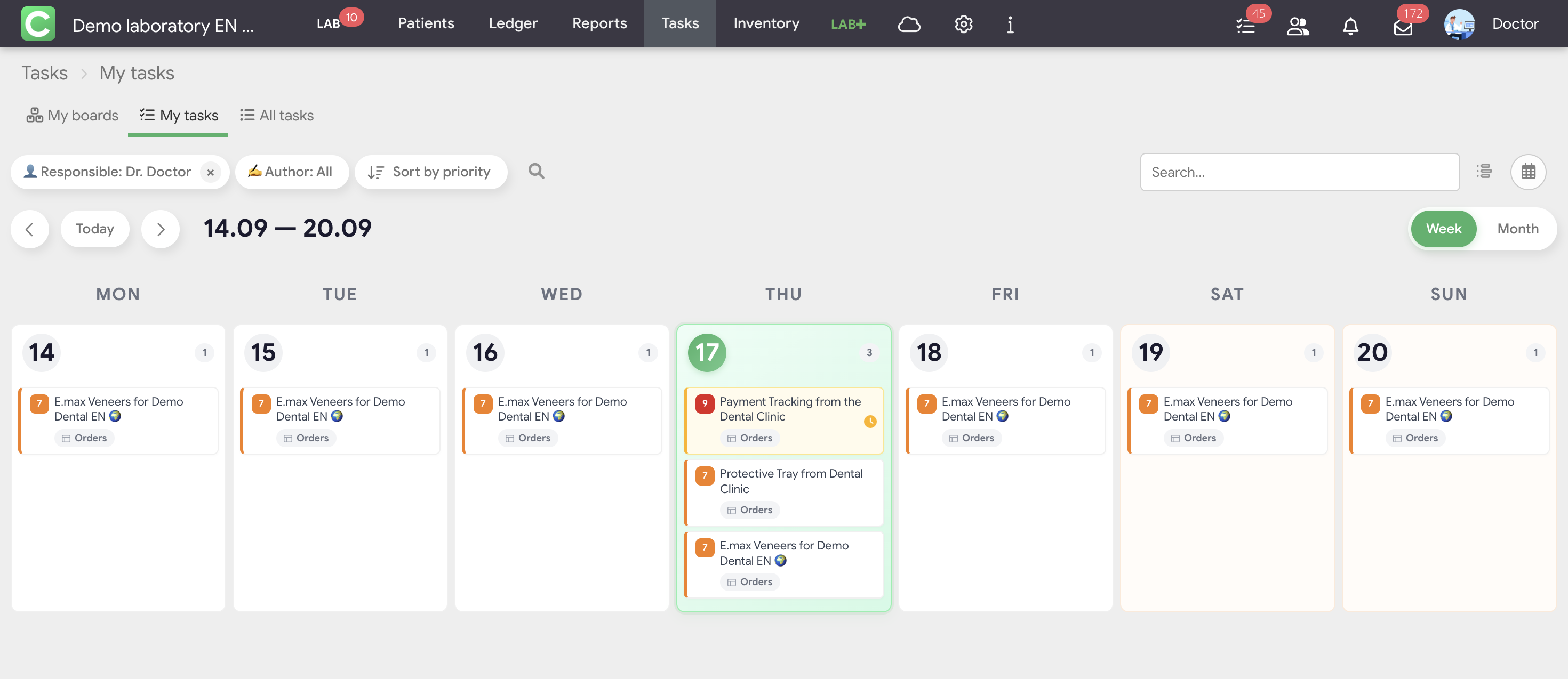
How are tasks displayed in the calendar?
It depends on the selected due date type.
The calendar can be viewed in week or month mode. Filters allow you to display only the tasks you need, including by assignee, author, status, patient, due date, and other parameters.
In All Tasks, you can also see which team member is responsible for each task. Less switching between boards, more clarity about what needs to be done and when.
Task Calendar is now available in Cliniccards!